However, when the waypoint dialog is opened, it covers the mission name. Would it be possible to center the name of the mission in the header so that it is not hidden when editing the mission?
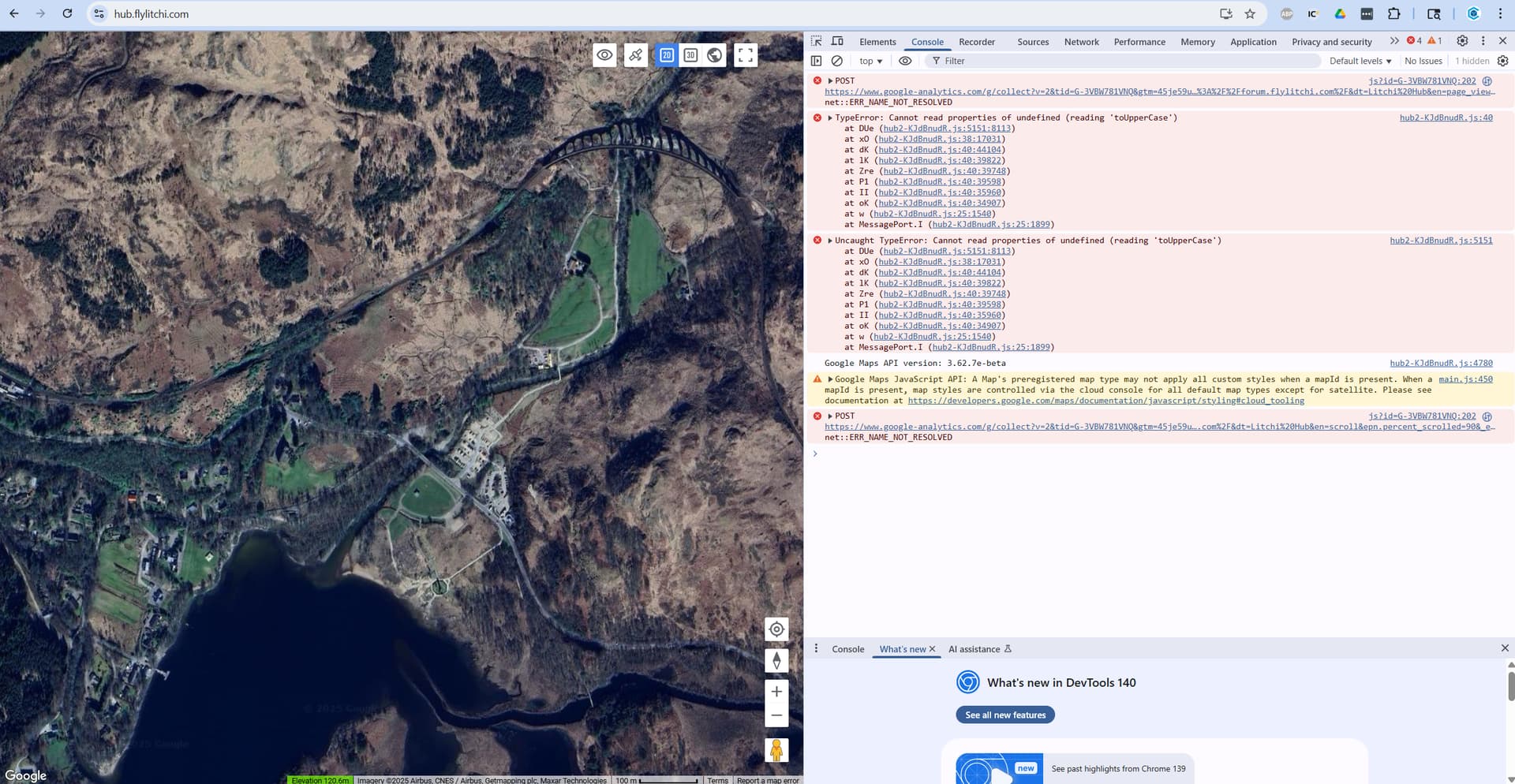
Try to clear your cache/cookies. If the problem persists, please open the developer console and send us a screenshot of any error you can see (in red)
You can open the Chrome DevTools Console by right-clicking on the page and selecting Inspect. Once the DevTools panel is open, select the Console tab to view the console.
The Hub settings actually use a drawer pattern rather than a traditional dialog, which is why it closes by tapping outside instead of with an “X”. This pattern is also common on mobile apps (e.g. Gmail), so we’ve kept it consistent across devices.
I understand what you are saying. Clicking outside to close the dialog might be consistent with other apps, but it is not consistent within the hub. Is there a reason one closing method is used for this dialog but another closing method is used for other dialogs? I would think that consistency within the hub is more important.
The Flight and Waypoint settings are not dialogs, they do not prevent interaction with the rest of the UI (map etc). We could make this clearer by reducing their height so they sit below the app bar and will consider doing that in a future update.
Ok. The Litchi Hub settings and the Mission Settings use different methods to display UI components. Is there a reason for this? Is it because the Litchi Hub settings are opened by selecting an icon in the header while the Mission Settings are opened by an icon displayed on the map? I’m just trying to understand the reasoning or requirement for using two different dialog display methods in the same application.
I ran a mission today (Oct 2nd) and it worked fine but all of the photos are dated September 21st!
I did run a previous mission on the 21st and didn’t format the SD card so somehow it seems to be picking up the old date and carrying it forward.
It gave me a heart attack as this was on a site where I had carefully placed GCPs, tagged all the positions and then removed them after the flight. I thought I was going to have to do the whole things again LOL
Hi, just a couple of requests for the new Hub, so far it’s nice, love the 3d and playback views, but just a couple of minor requests..
It would be nice to be able to control the number of waypoints created. Maybe this will be added in the upcoming 3d mapping ? This could be quite important for DSM’s with quite extreme height variations for both ortho and 3D mapping.
It would be nice to have the option to pause for each photo. So that a higher travel speed can be set. I have been playing with geo flight planner for Qgis GeoFlight Planner — QGIS Python Plugins Repository which has some of its own drawbacks, but what it does is make each photo a waypoint and has the ability to define a pause for each waypoint. Meaning you can ensure no motion blur on images, but ramp up the travel speed thus decreasing overall flight time and improving capture quality.
I tried to import a converted DSM to the asc , with no luck, probably my error, but I think for clarity, it would be nice if this had its own dedicated import option as I only discovered it due to a post and reply here. It’s not obvious to a new user.
Otherwise, I’m really impressed with it, and REALLY can’t wait for the upcoming 3D grid option to start working. On that note, obviously it’s a big one to ask, but the ability to import a 3D mesh (building for example) and plan a flight around that at a given offset would be awesome!)
OK, so I managed to convert my DSM.tiff into .asc correctly using QGIS (long winded process, can you add the option to import a standard singleband tiff raster?) and now have it imported into Litchi Hub, and it shows the place holder, and the altitude readings under the cursor are correct and change colour when cursor off the dsm, however, there are some quite bad bugs…
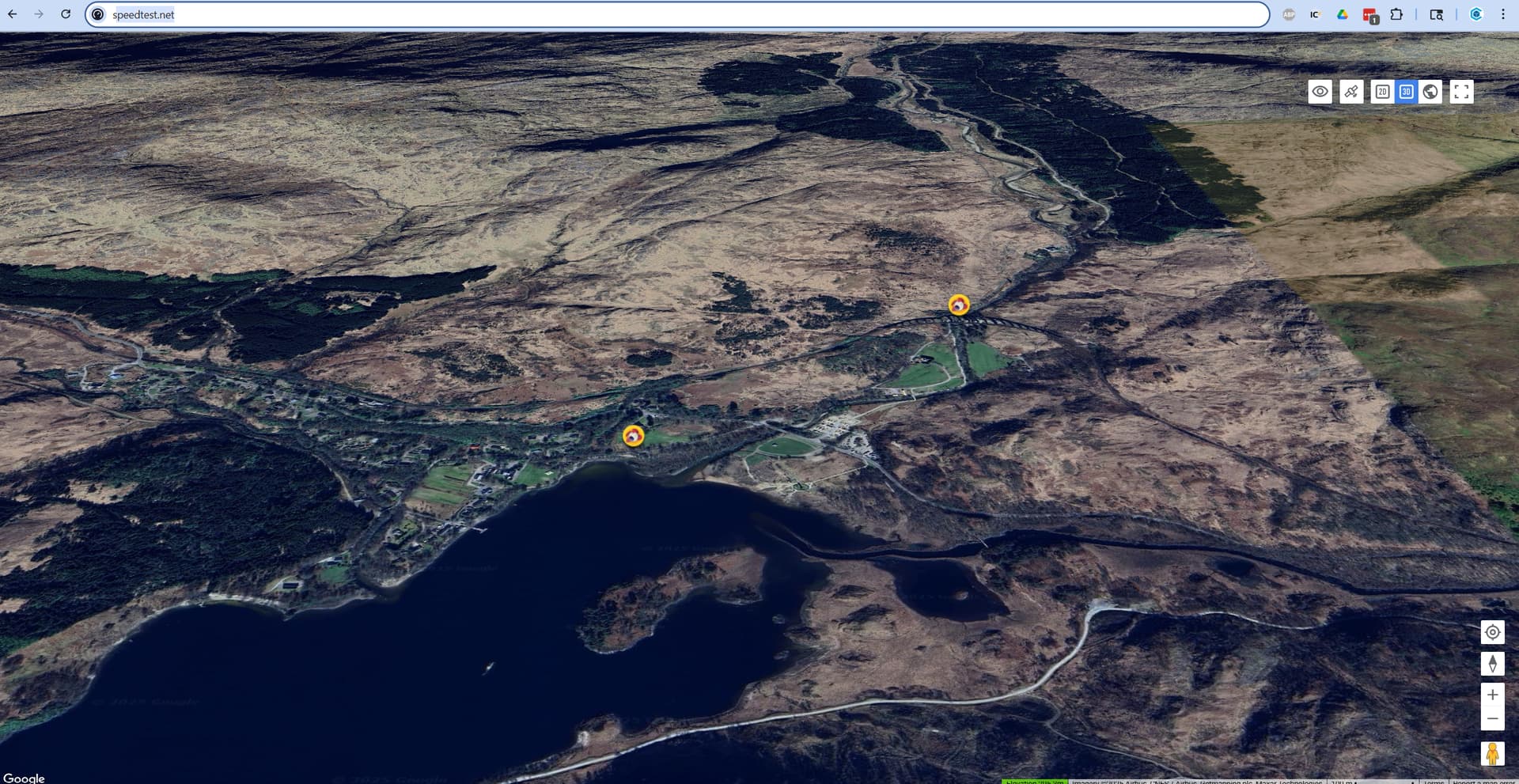
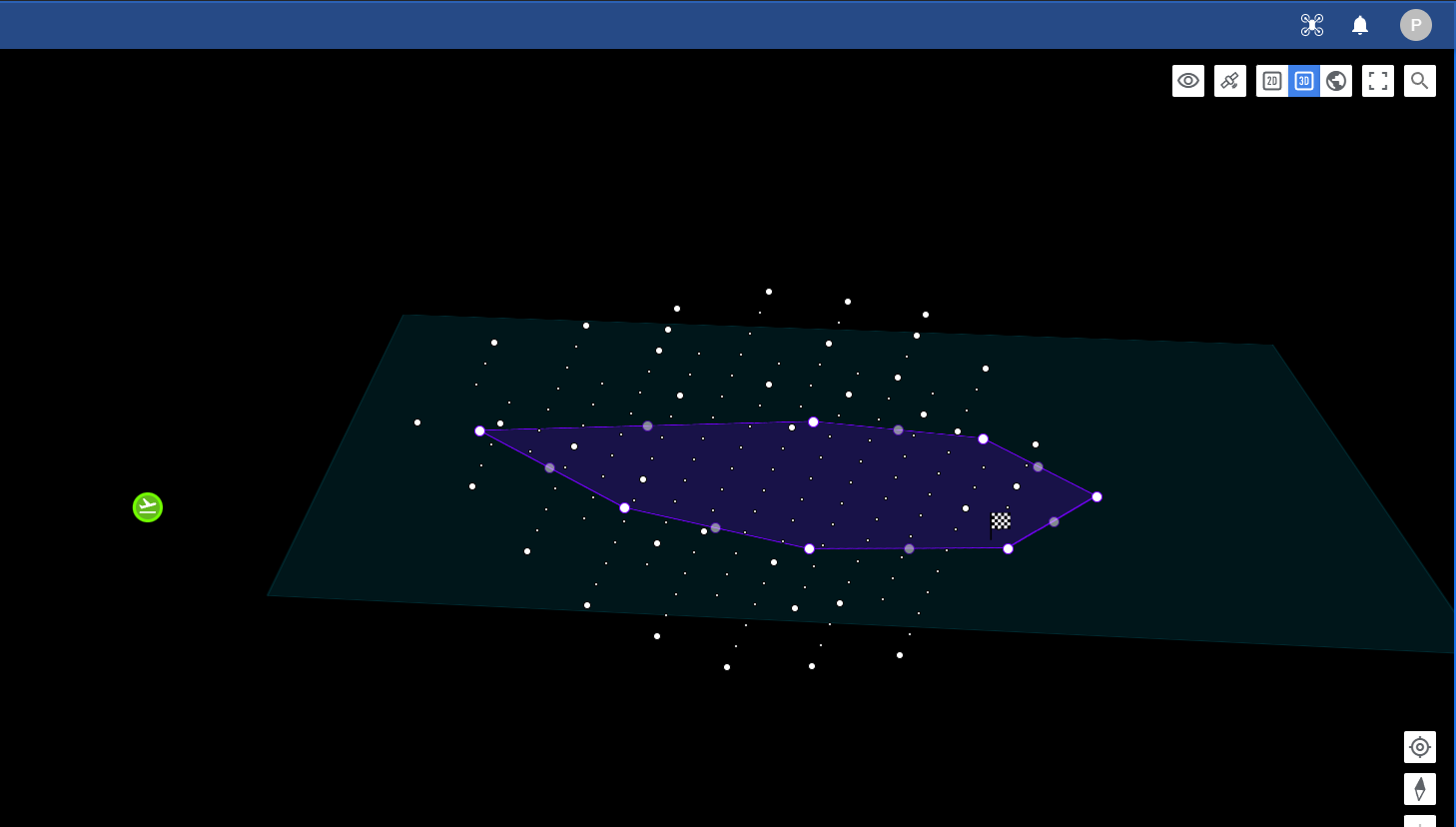
The map disappears, the dsm doesn’t display and probably worse, the waypoints/plan freezes in top view with another view underneath (see image)
Also, on a UX observational note, there doesn’t appear to be a way to remove the imported asc , or at least it’s not clear how to do that. + it seems odd that one would load the .asc file on a global level rather than inside each project so it can be saved within the project if desired.
The Flight Library and Flight Settings panels now open beneath the top bar, so the flight name remains visible
Improved Flight Library performance
When using the Previous/Next buttons to select the previous/next waypoint or POI, the map will now automatically move to show the marker if it’s out of view
”Sorry! Something went wrong. This page didn’t load google maps correctly. See the JavaScript console for technical details.”
In the new hub.flylitchi.com, after opening an imported .CSV file, converted from a DJI Fly KMZ waypoint mission file, how do i preview the flight?
When clicking on the Google Earth icon, I get the error message:
”Sorry! Something went wrong. This page didn’t load google maps correctly. See the JavaScript console for technical details.”
Can anyone please help?


 :
: