Thank you so much. Your answer saved my week.
Should that wifi transfer work even though the computer is a Windows PC and the iPad is a DJI Fly? I just can’t find that option, but it works via USB.
Wireless transfer for iPhone/iPad is supported on both Windows and Mac. Enable WiFi connection via the Litchi Hub Bridge system tray/menu bar icon in order to use it.
1 Like
When I load the new hub, most of my waypoint flights that was saved in the older version are missing, the rest just loads as a horizontal line on the equator and the rest are a few random vertical lines from North pole - South pole, thus the flightpath is gone.
Please help.
Make sure you’re using this address: https://hub.flylitchi.com/
Old flights should load without any issues in the new Hub
I get exactly the same issue.
Thank you very much, it works fine now, just to try “Litchi Bridge” to load the waypoint flights onto the DJI RC2
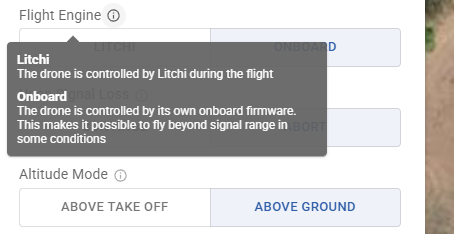
In the settings, should I choose “onboard engine” or “Litchi”?
I also see that if I select “DJI Fly” in stead of “Litchi Pilot”, all the straight lines are changed to curves, as this is a powerline, it defies the object then to fly with waypoints above the electrical line and take an inspection video.
I also see that the handy feature of the old hub, distance between waypoints, are not displayed anymore, is there a setting to have it displayed?
You choose “onboard engine” to fly the waypoint mission with the DJI Fly app, or “Litchi” to fly the mission with the Litchi Pilot app.
or when using the Litchi Pilot app:
Change the “Path Mode” in global settings to “Straight”.
No.
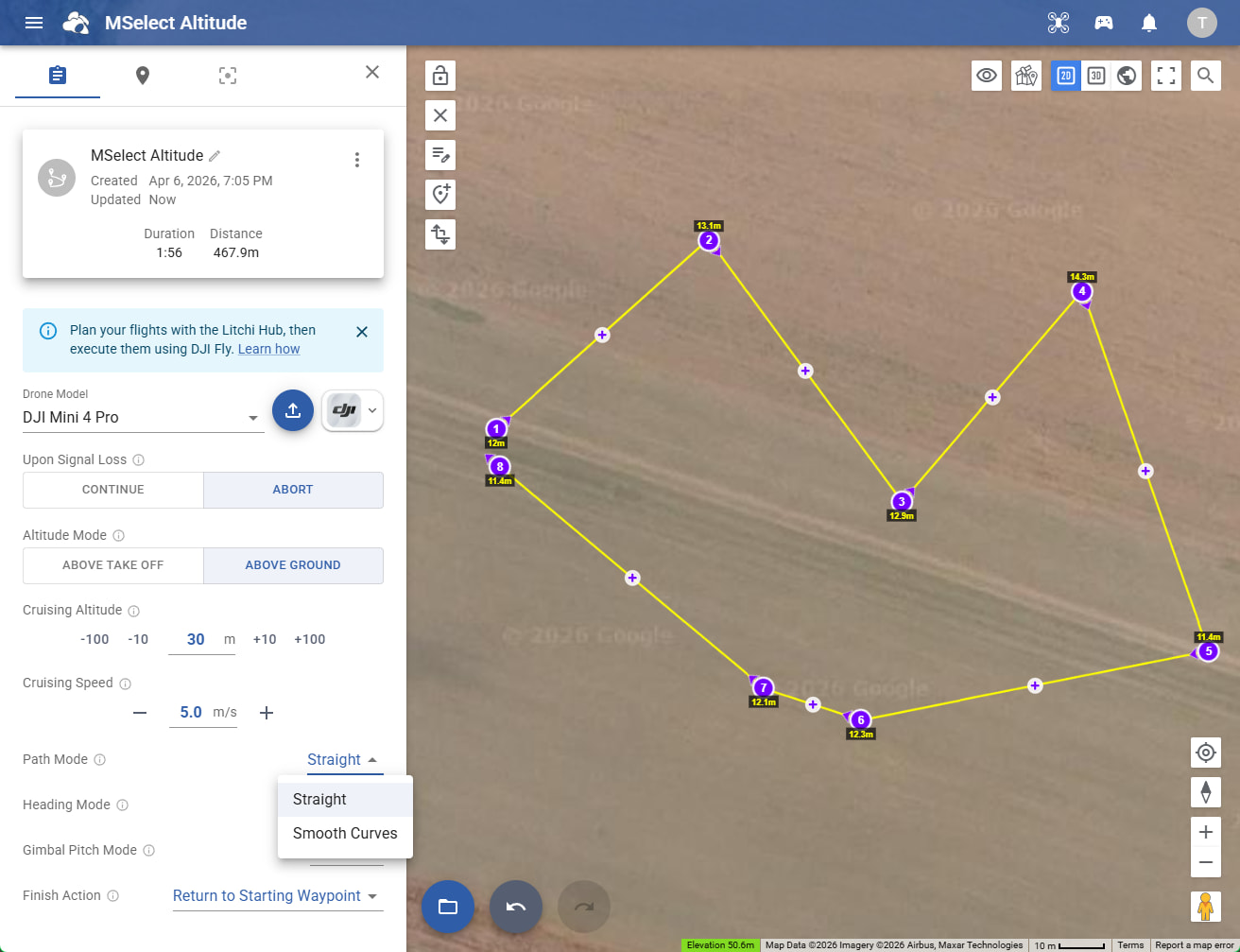
Click on a waypoint to see adjacent segment distances. We don’t show all at once for performance and clutter reasons
This looks like a significant leap forward! The focus on enhanced collaboration and the powerful 3D planning capabilities, along with the seamless DJI integration, are truly impressive. It’s clear a lot of thought went into streamlining the entire flight planning process.
1 Like
When exporting a mapping mission, one is presented with two options:
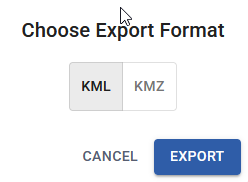
Since there are two non-compatible KMZ formats (Google Earth or DJI), the only way to tell which one is supported in the export dialog is to export it and view or test it. This is a constant source of confusion to many. It would remove this ambiguity if the KMZ label in this dialog was changed to “DJI KMZ”.
Renamed, thank you for the suggestion!
The “Clear Map” option in the main window of the new hub has confused some people. A recent post suggested that a person was using it to simply clear the map before proceeding to create another mission. Instead, he was unaware that he was deleting the content of his missions.
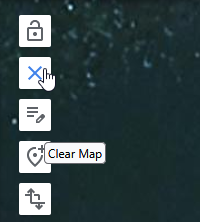
Perhaps the tooltip that pops up should say “Delete Waypoints” (or similar) instead of “Clear Map”. Also, the confirmation dialog should probably say “Are you sure you want to delete the contents of this mission?”.
1 Like
Hello, not only a minimum lower limit, a set limit box “don’t go below … m” , but also, maximum limit box “don’t go above … (120)m.” maximum legal limit.
An automatic curve calculator would be super handy that puts (extra) WP and the best calculated height WP not to exceed that minimum/maximum height.
thank you very much.
Greg.
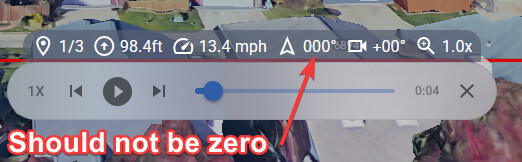
Bug Report: The Google Earth 3D simulation using FPV always has a heading=0 (zero degrees) when heading mode is set to “Custom”.
Steps to reproduce:
- Create a new mission
- Select Mini 5 Pro as drone
- Set the heading mode to custom
- Add two or more waypoints each with a custom, non-zero heading.
- Select Google Earth mode
- Set camera mode to FPV
- Select “Simulation”
Note that the simulation always points at heading=0 degrees.
The beta looks really good so far, but I’m missing a feature that I would need to fully switch from virtual litchi mission. I use it to create and fly drone paths to capture gaussian splats. 2 orbital passes at different heights and 1 in a grid straight down. The grid is now easily created in the new beta, but the orbital pass isn’t quite there yet for me. I would like to be able to add multiple rings to the orbit instead of just the one. I don’t see an option to do this right now. This way it will do multiple loops around the POI instead of a single big loop.
Controller: DJI RC Pro
Drone: Mavic 3 pro
A way to capture 360 pano’s would also be huge for me. The build in tool from dji works, but it takes ages while waiting for it to stitch.
This should be fixed, thank you for reporting it
You can already do that, after adding an Orbit, select the orbit’s entry point and adjust the number of revolutions (negative number to go the other way).
For Pano - it’s just a matter of time before we get to it
1 Like
Oh wow, for some reason I completely missed this last night. My bad. Thank you!