Welcome Litchi Hub, the next-generation successor to Mission Hub.
Litchi Hub is a modern flight planning platform designed to make drone flight planning smarter, faster, and more collaborative.
It provides powerful planning tools, photorealistic 3D simulation, advanced mapping capabilities, and seamless integration with multiple DJI flight applications.
Plan, simulate, and manage complex drone flights entirely from your browser.
Try it now at https://hub.flylitchi.com
Overview
- Advanced Flight Planning
- Editing Tools
- Flight Management & Organization
- Google Earth 3D Planning
- Camera Projection
- Flight Simulation
- Area Mapping (Photogrammetry)
- KML Import for Mapping and Boundary Planning
- Flight App Integration
- Smart DJI Fly Export & Import
- Additional Features
Advanced Flight Planning
Plan complex waypoint flights directly from your browser or mobile device with powerful editing tools and global flight settings.
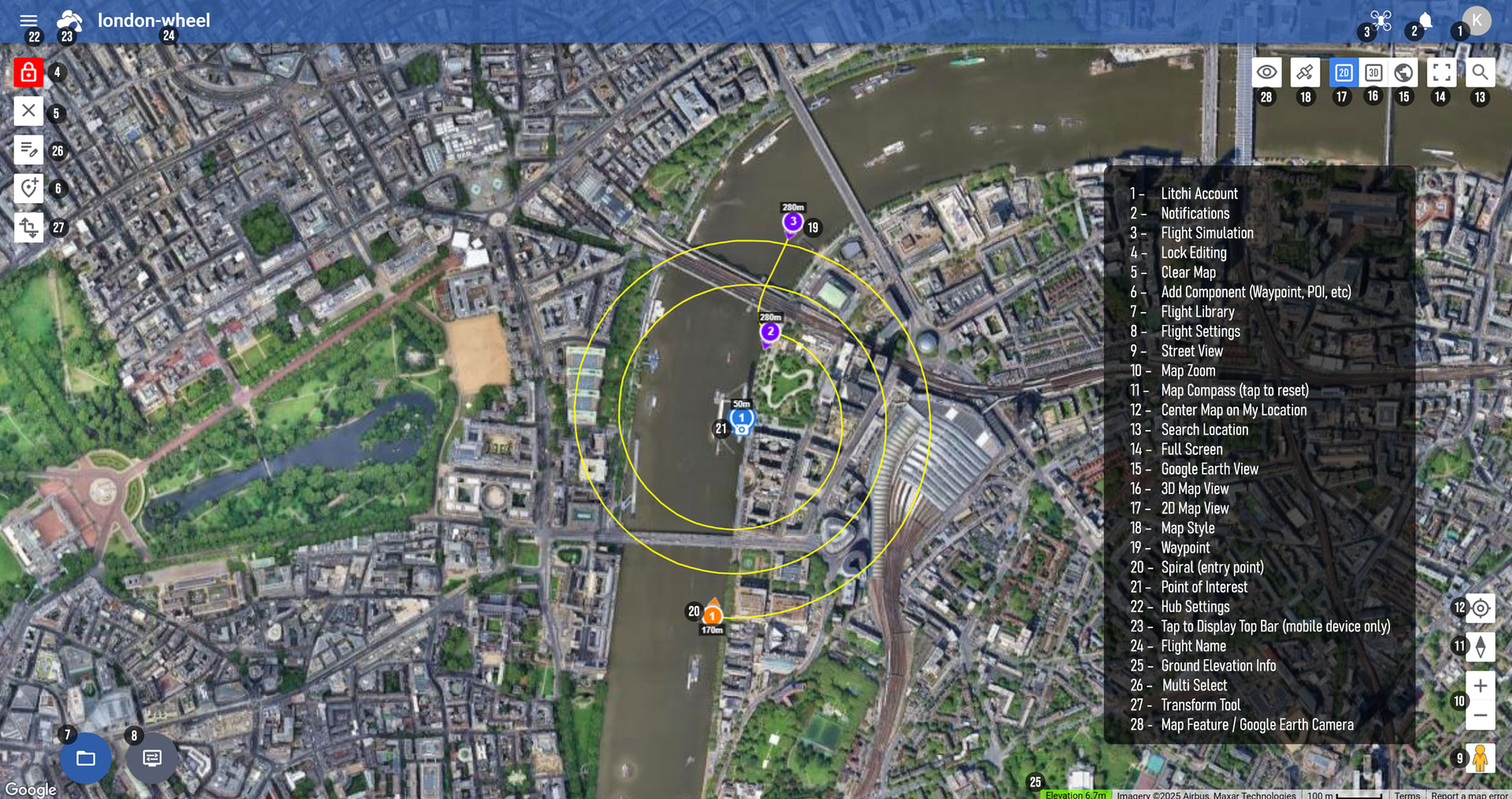
Key capabilities include:
- Automatic saving — your changes are instantly preserved
- Global flight settings for fast setup
- Advanced flight path control with Smooth Curves and Straight Line modes
- Precise camera control with adjustable gimbal pitch
- Built-in Orbit and Spiral flight planning
- Advanced waypoint actions including Zoom and Bottom Lights
Currently some features are available only for drone models compatible with Litchi Pilot
Editing Tools
Waypoint editing is fast and intuitive thanks to contextual controls.
Left-click allows you to add waypoints on the map or interact with map elements.
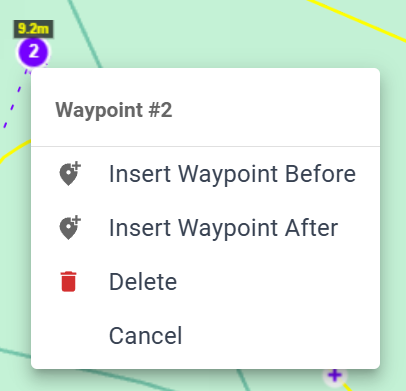
Right-click options allow you to:
- Insert a waypoint before or after
- Delete a waypoint or POI
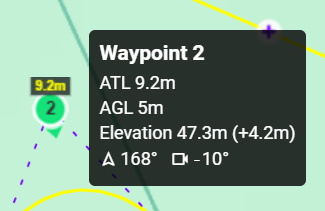
Waypoint tooltips display key information, including:
- Heading
- Gimbal pitch angle
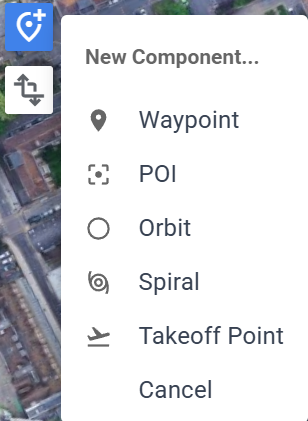
The Add Component button allows you to
- Add a Waypoint
- Add a POI
- Add an Orbit or a Spiral
- Add a Takeoff Point reference
The Transform Tool allows quick adjustments to entire flights.
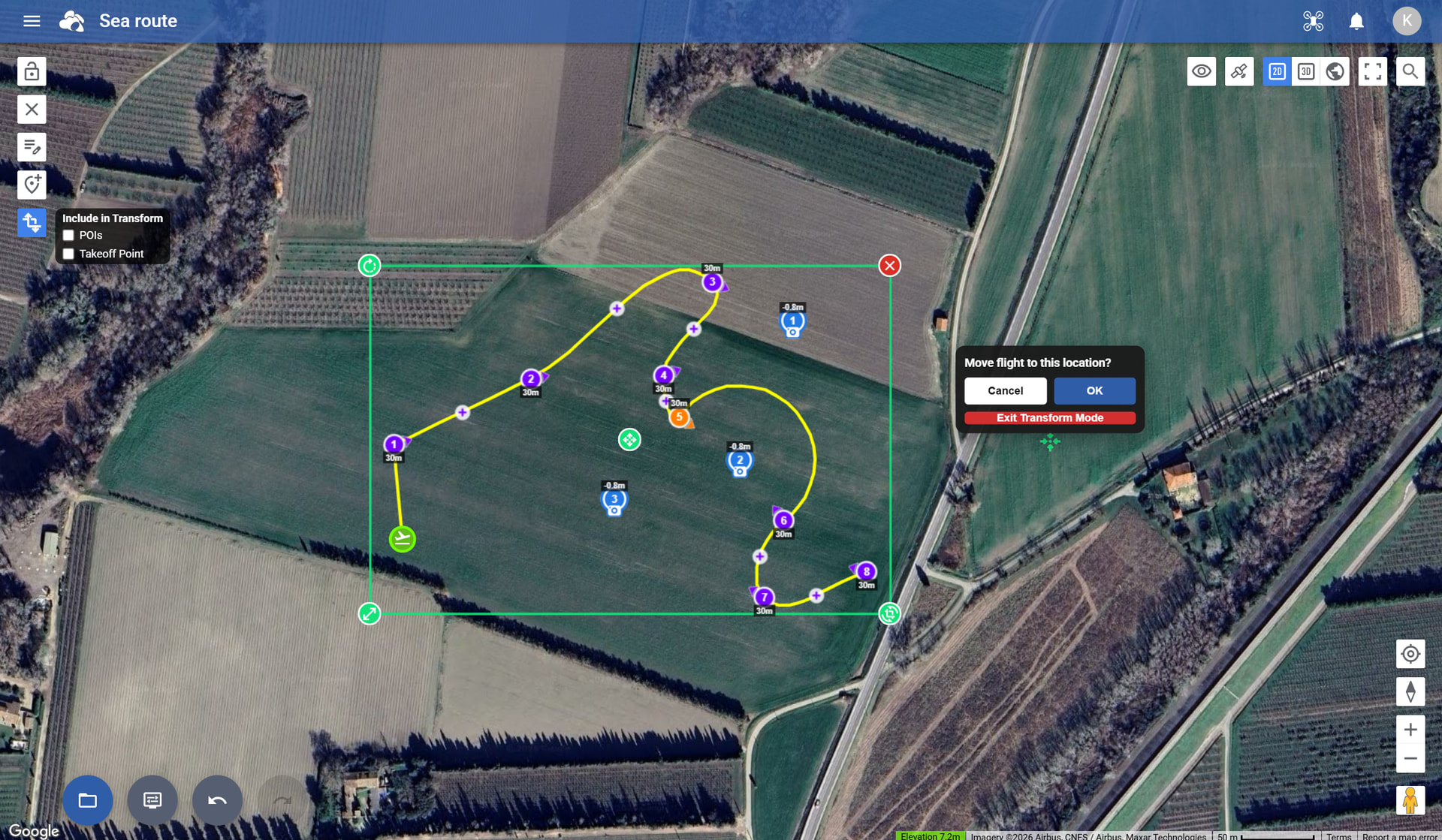
Transform features include:
- Move a flight to a new location
- Rotate the flight path
- Scale the flight layout
This makes it easy to reuse the same flight in different locations
Flight Management & Organization
Litchi Hub includes a powerful Flight Library system to manage flights efficiently.
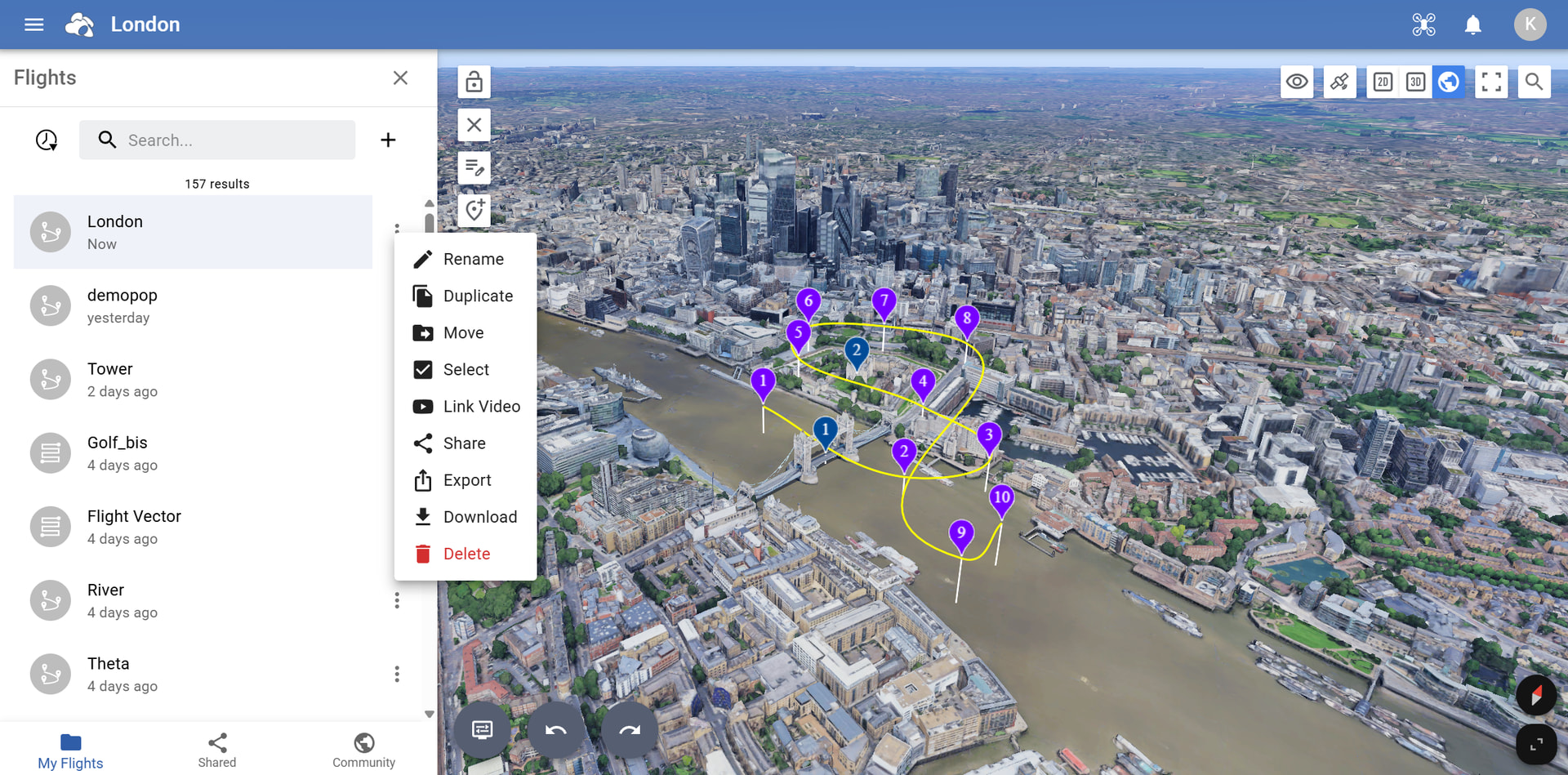
Features include:
- Folders for organizing flights
- Search to quickly locate flights
- Flight sharing
- Real-time collaborative planning
- Drag & drop flight organization
- Multi-select operations for batch actions
Managing and organizing your flights has never been easier
Google Earth 3D Planning
Litchi Hub includes advanced planning tools directly inside the Google Earth 3D environment.
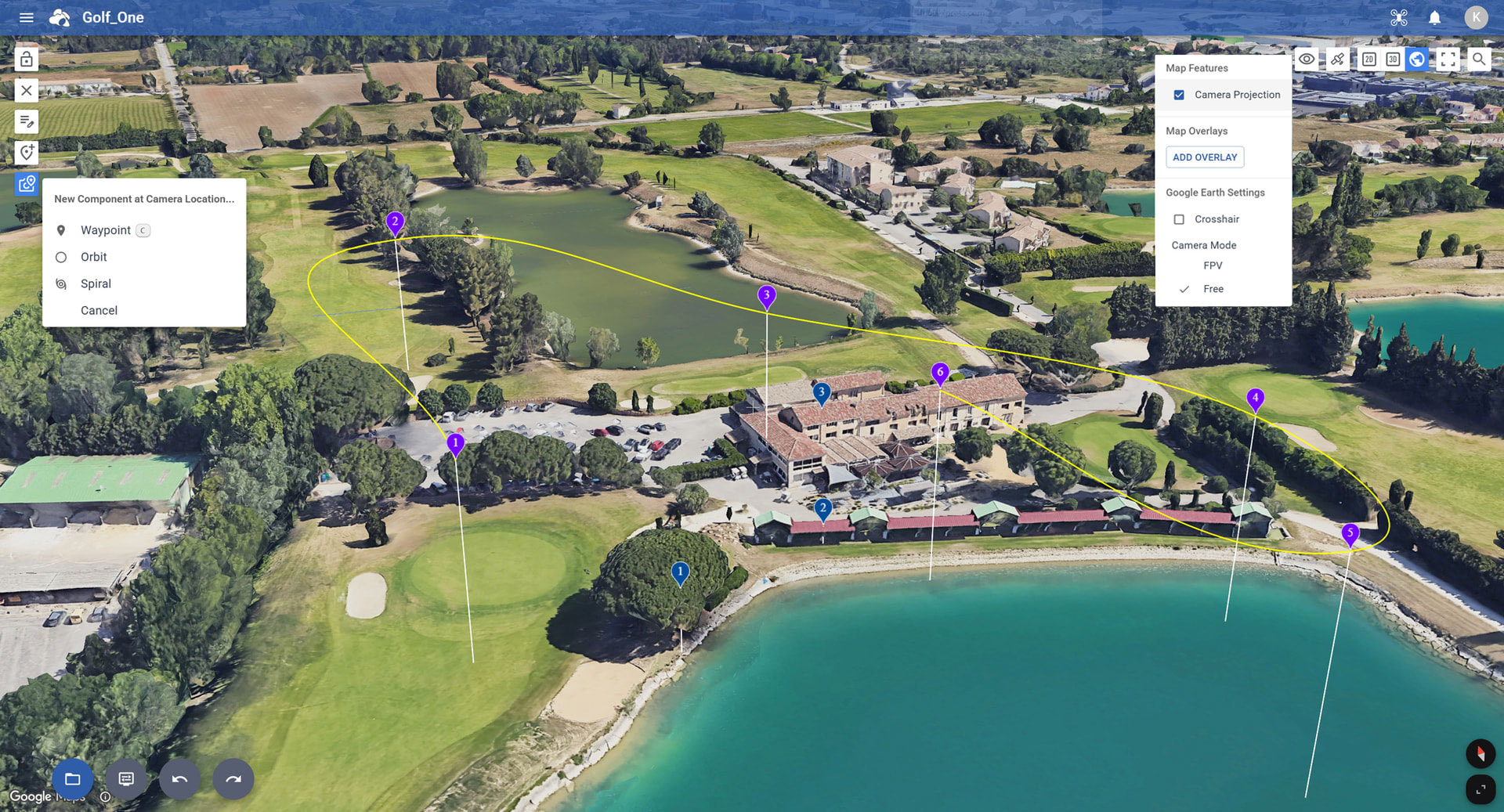
The power of Google Earth at your fingertips
Capabilities include:
- Draw mapping areas directly in 3D
- Add Waypoints, Orbits, or Spirals at the camera location
- Hybrid map support
- Switch between Free camera and FPV camera modes
- Crosshair overlay showing camera direction
- Add flight components directly in the Google Earth view
Plan your flights directly inside a photorealistic 3D environment powered by Google Earth
Camera Projection
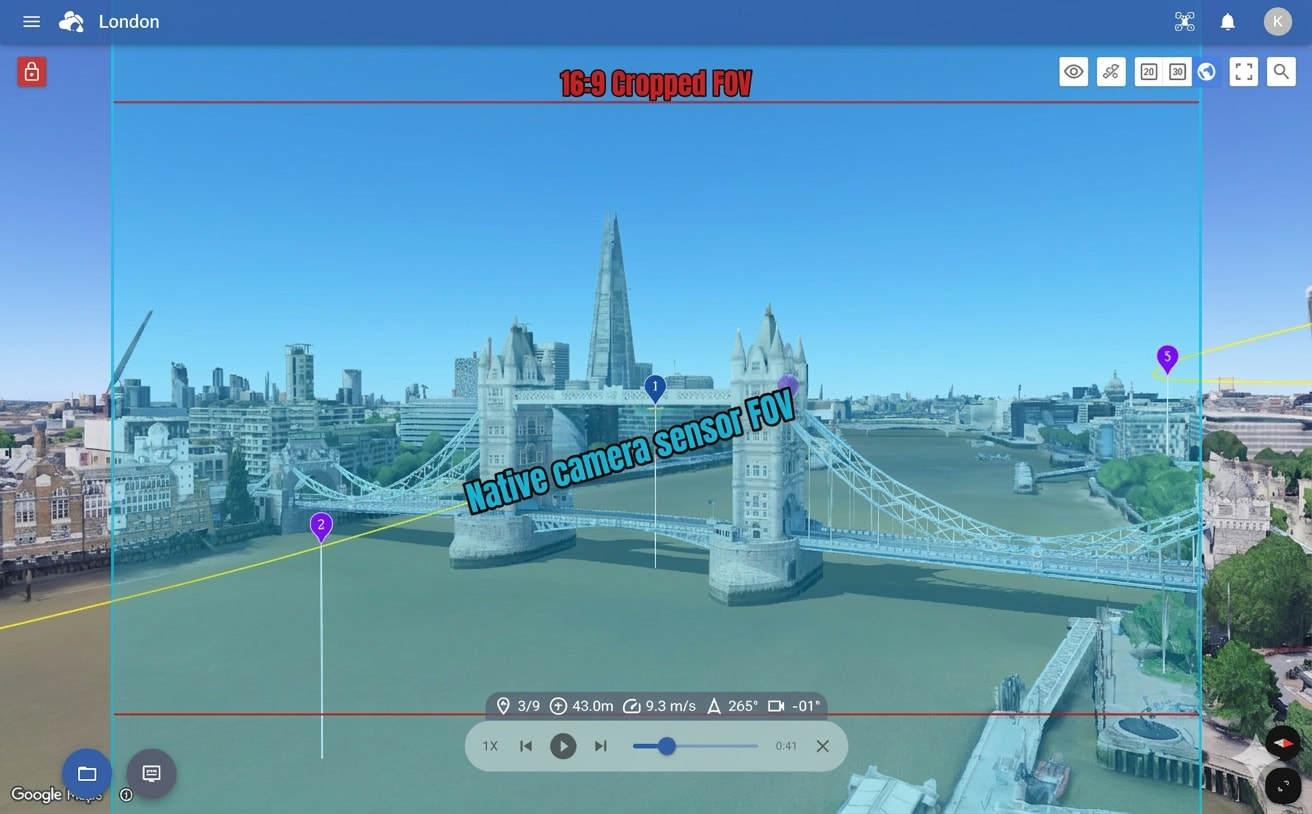
Litchi Hub visualizes the drone camera projection directly on the map.
Whenever a waypoint is selected, the interface displays the exact camera field of view (FOV) for the selected drone and lens, available in both Free mode and FPV mode.
-
Free Camera Mode
-
FPV Camera Mode
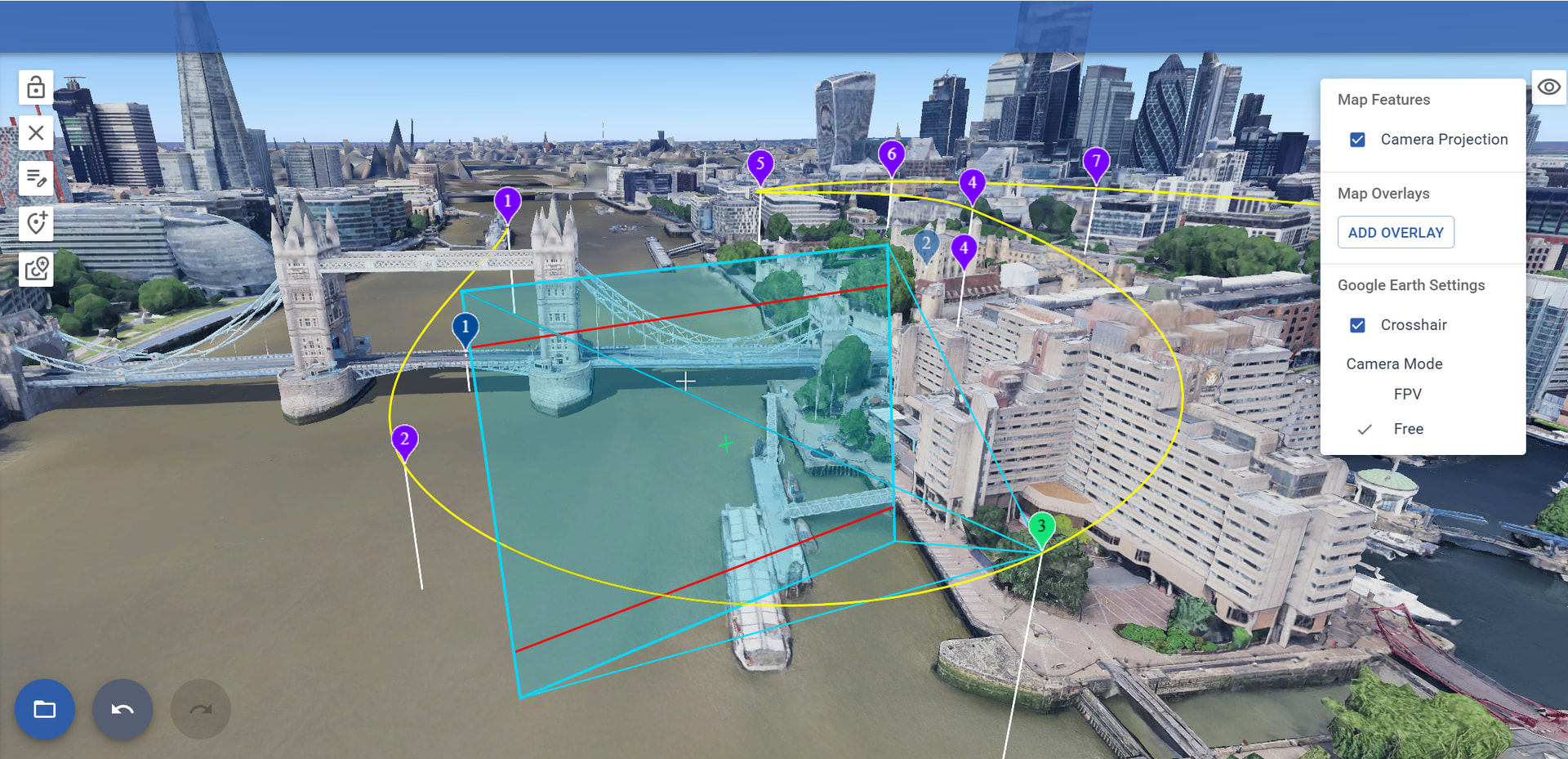
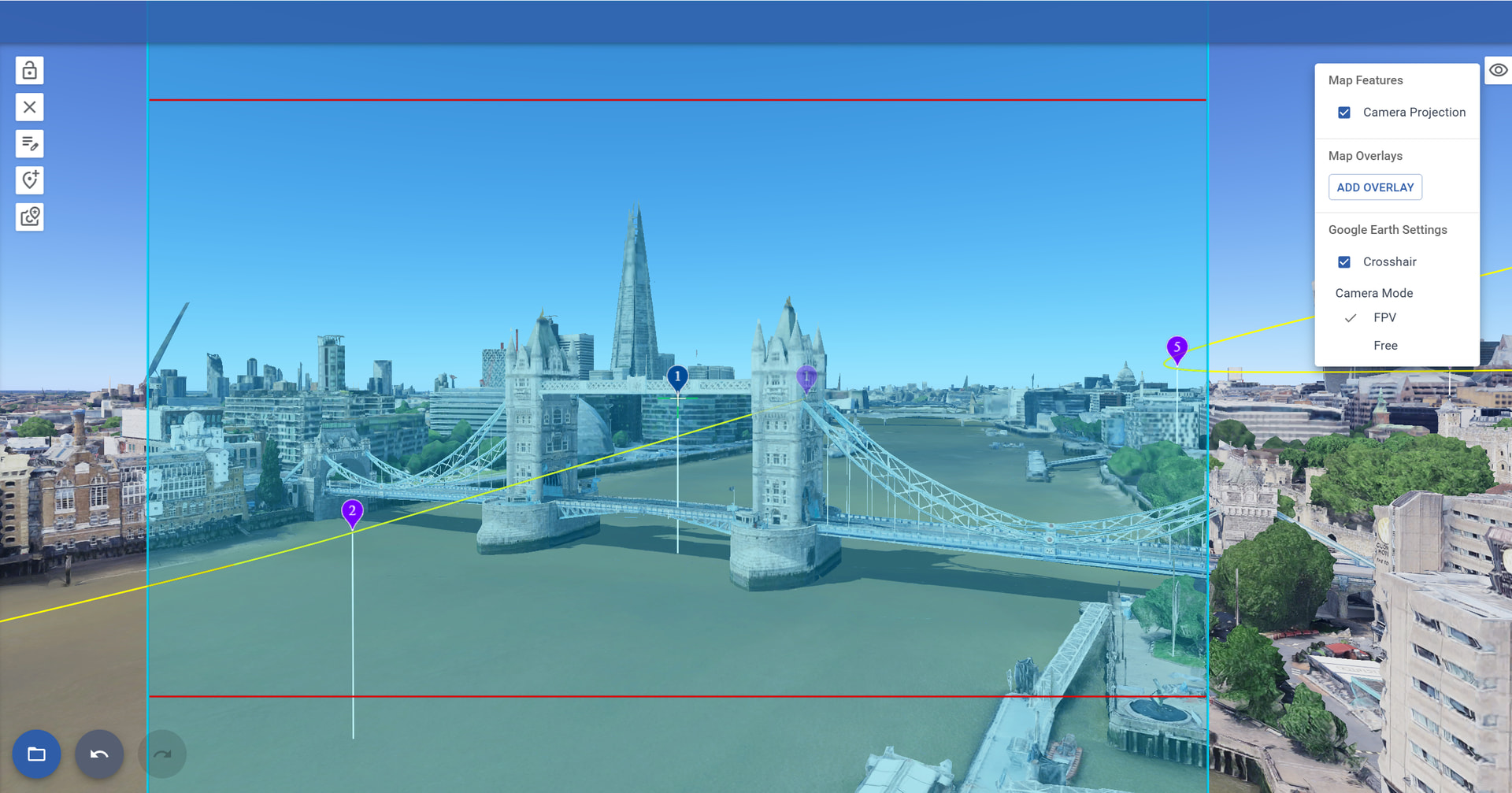
This allows pilots to precisely preview what the drone camera will capture during the flight
Flight Simulation
Flight simulation includes the same three visualization modes available during flight planning: 2D, 3D, and Google Earth’s photorealistic 3D.
-
2D Mode
-
3D Mode
-
Google Earth (Free Mode)
-
Google Earth (FPV Mode)
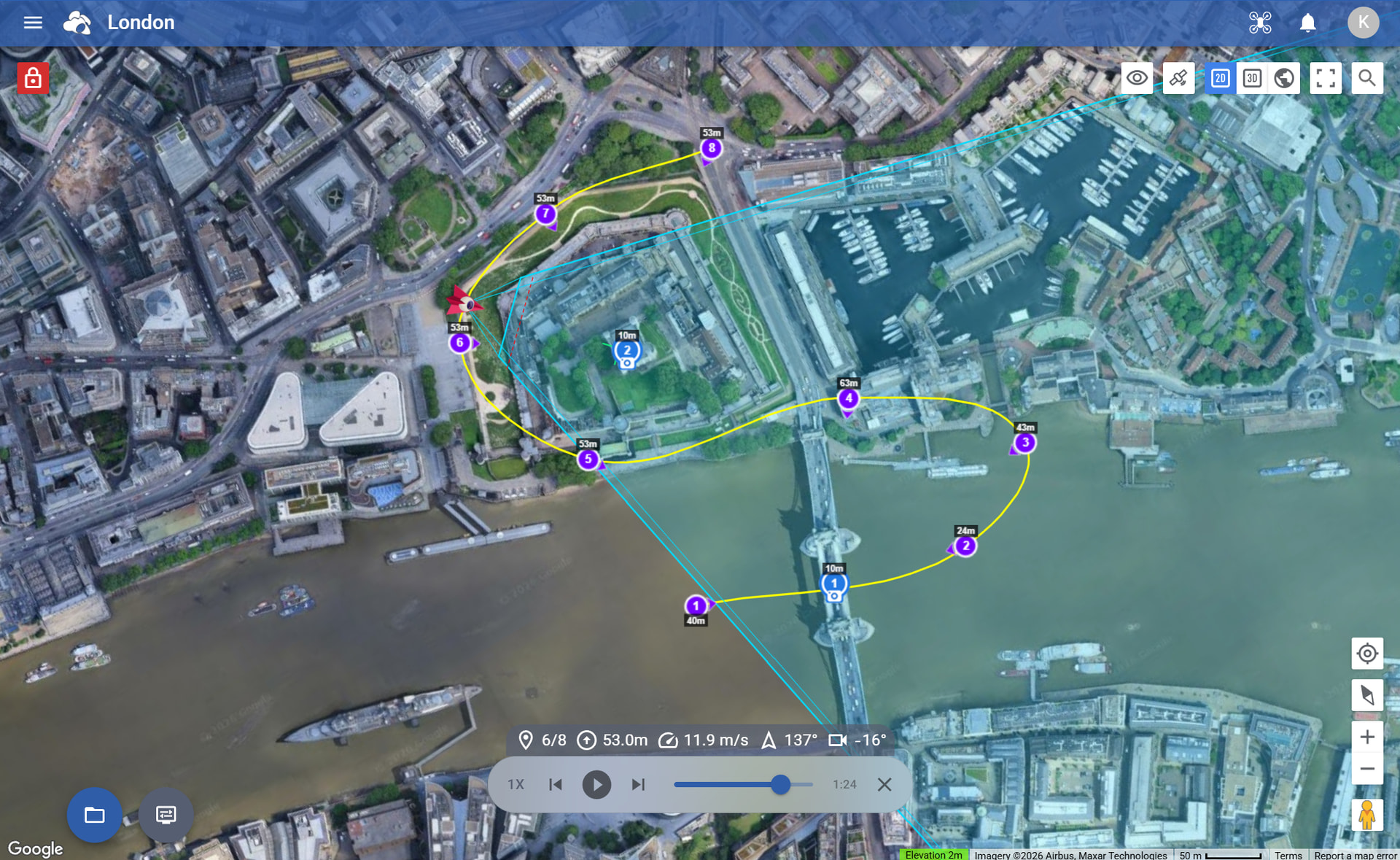
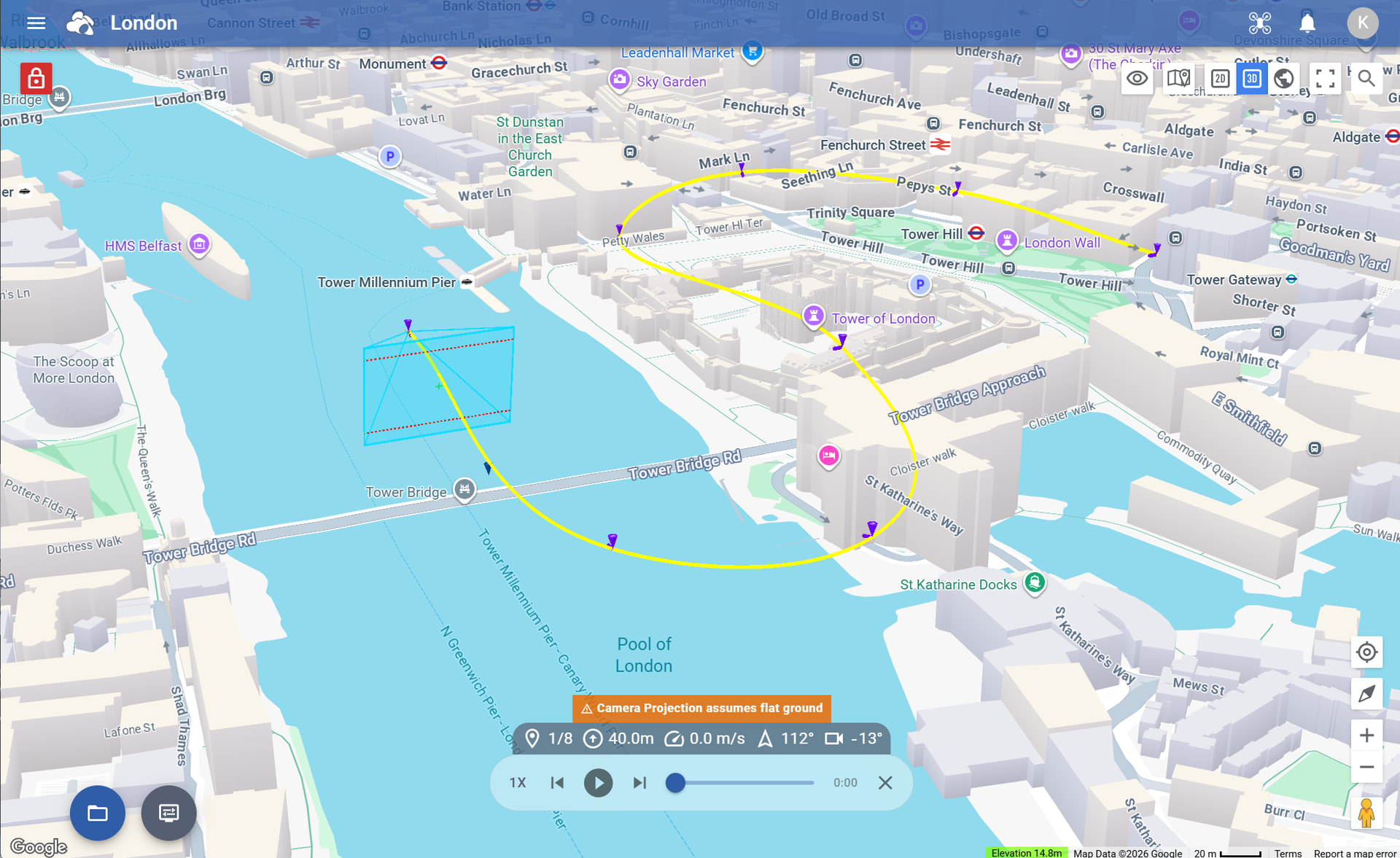
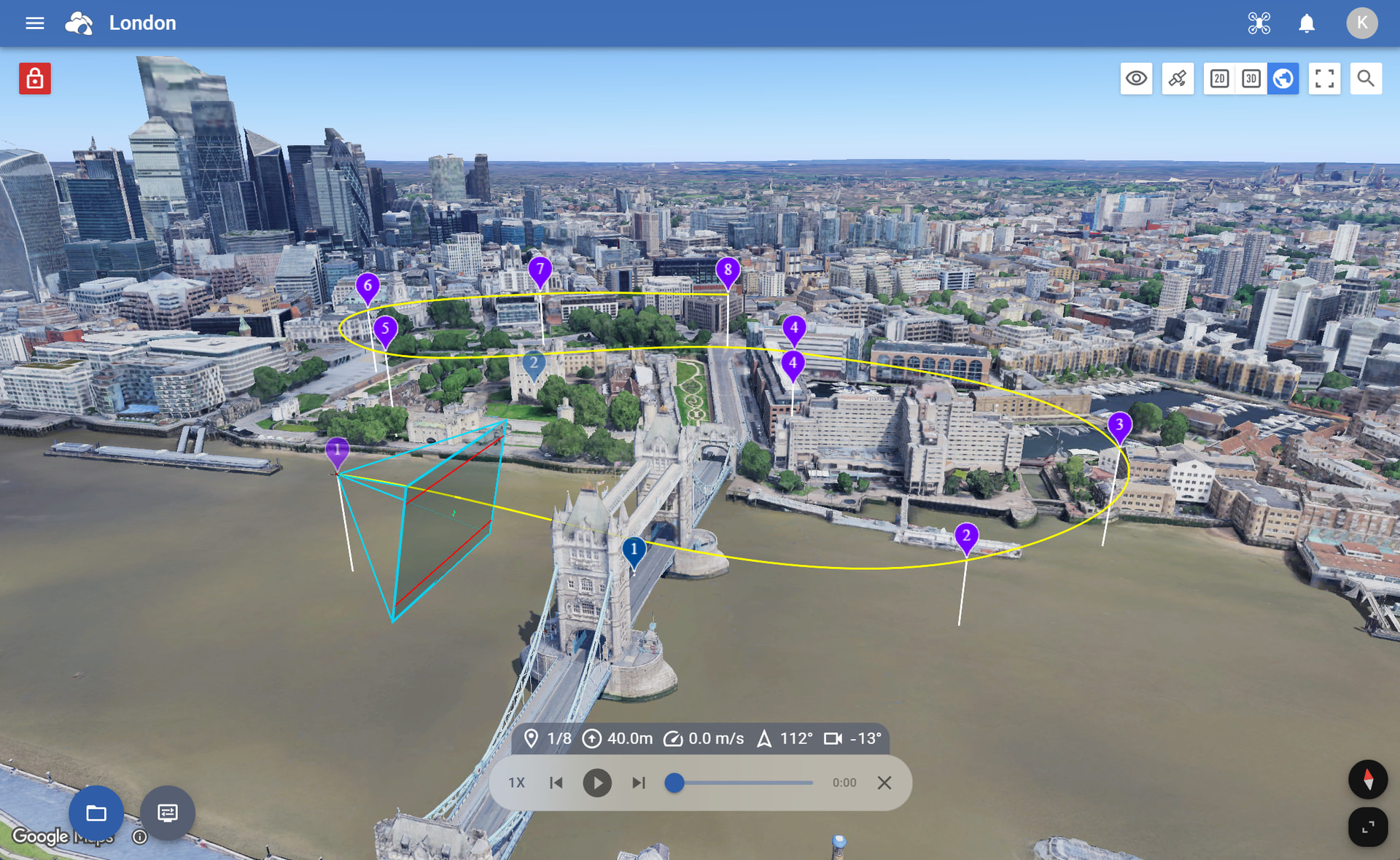
The simulation widget provides intuitive controls to preview and navigate your flight before takeoff.
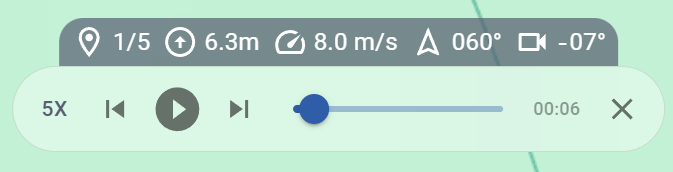
Simulation tools include:
- Real-time drone simulation
- Adjustable playback speeds (up to 8×)
- Current waypoint settings display during playback
- Skip forward or backward between waypoints
- Timeline position slider
- Automatic waypoint selection during playback
- 2D & 3D flight simulation preview
- Google Earth–powered photorealistic simulation environment
Demo video
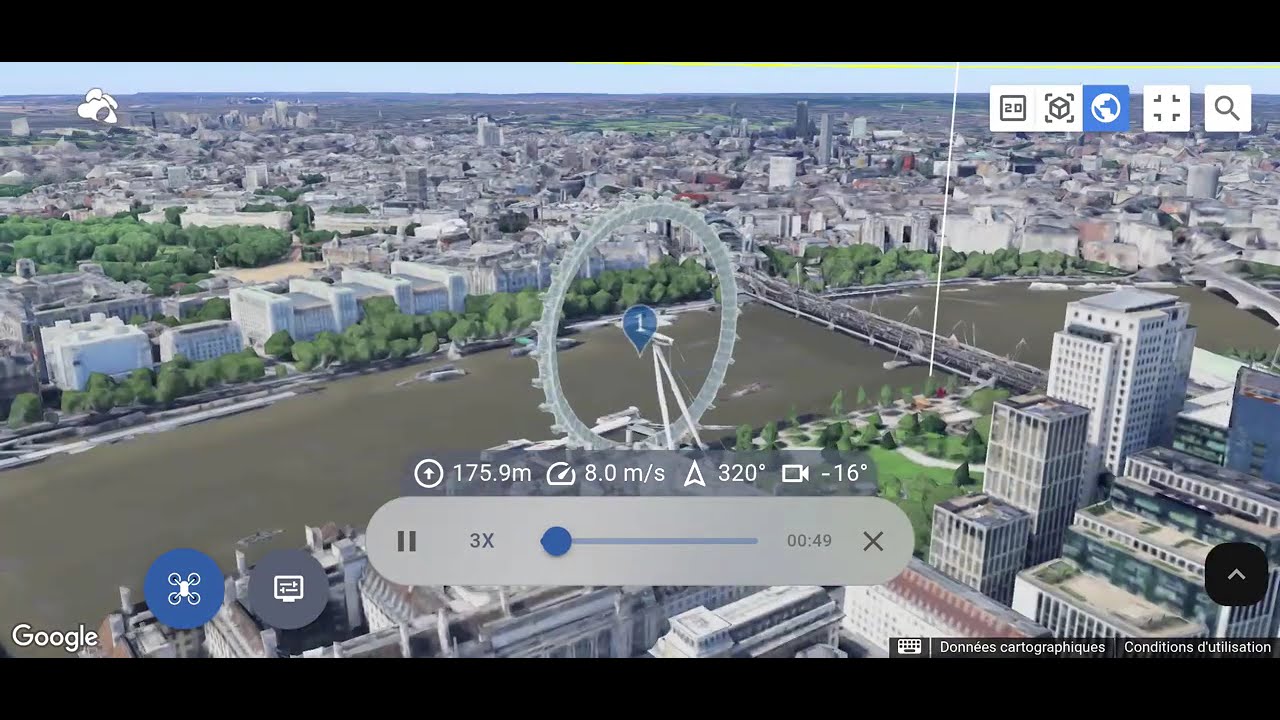
This allows pilots to preview flights using real terrain, buildings, and satellite imagery
Area Mapping (Photogrammetry)
Litchi Hub includes built-in Area Mapping tools for planning automated photogrammetry flights.
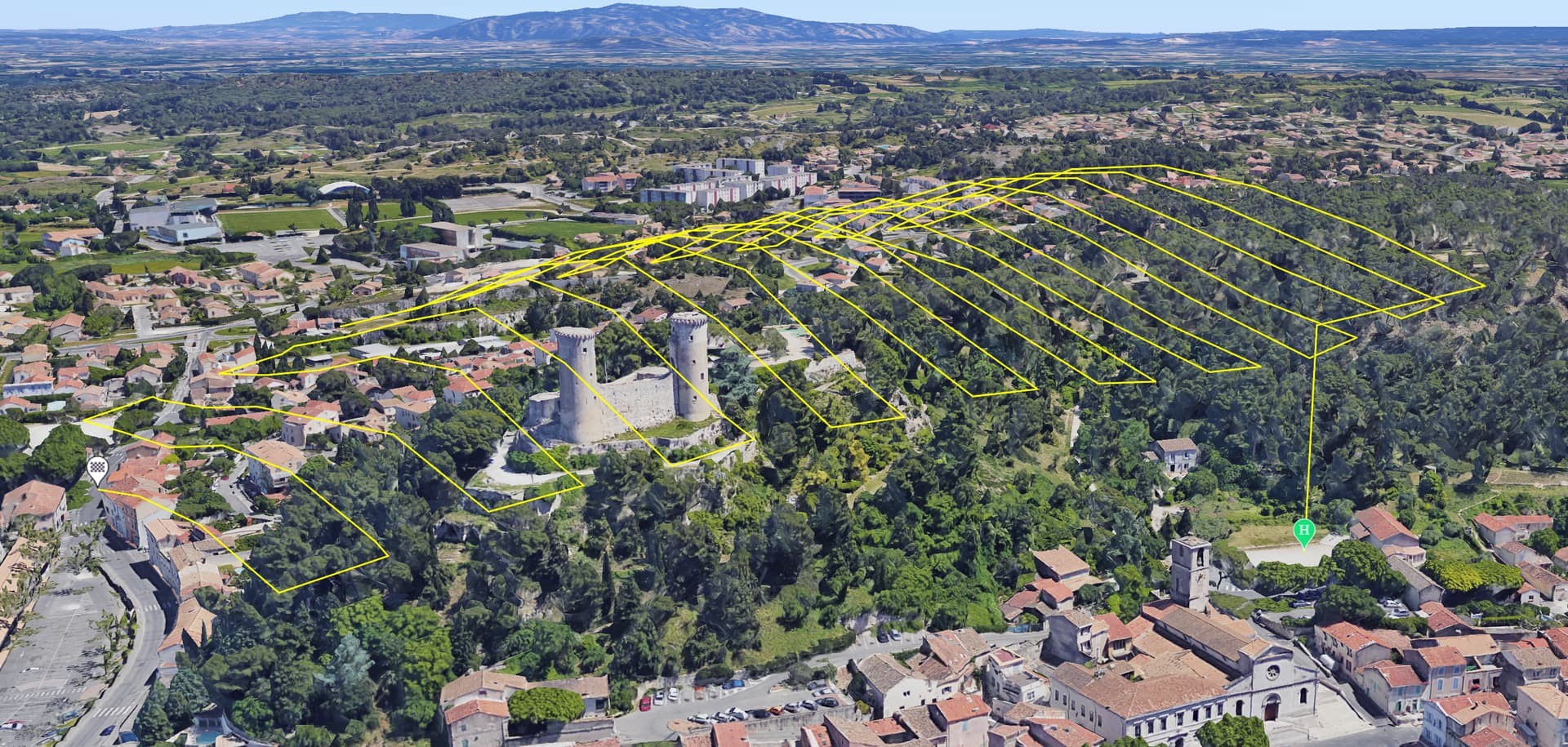
Mapping features include:
- Automatic mapping grid generation
- Adjustable overlap settings
- Photo or video capture modes
- Custom gimbal angles
- Adjustable turn radius for curved turns
- Display of edge lengths on mapping boundaries
- Speed warnings when flight speed is too high
- Visual indicators for capture points
- Import mapping areas from KML or KMZ files
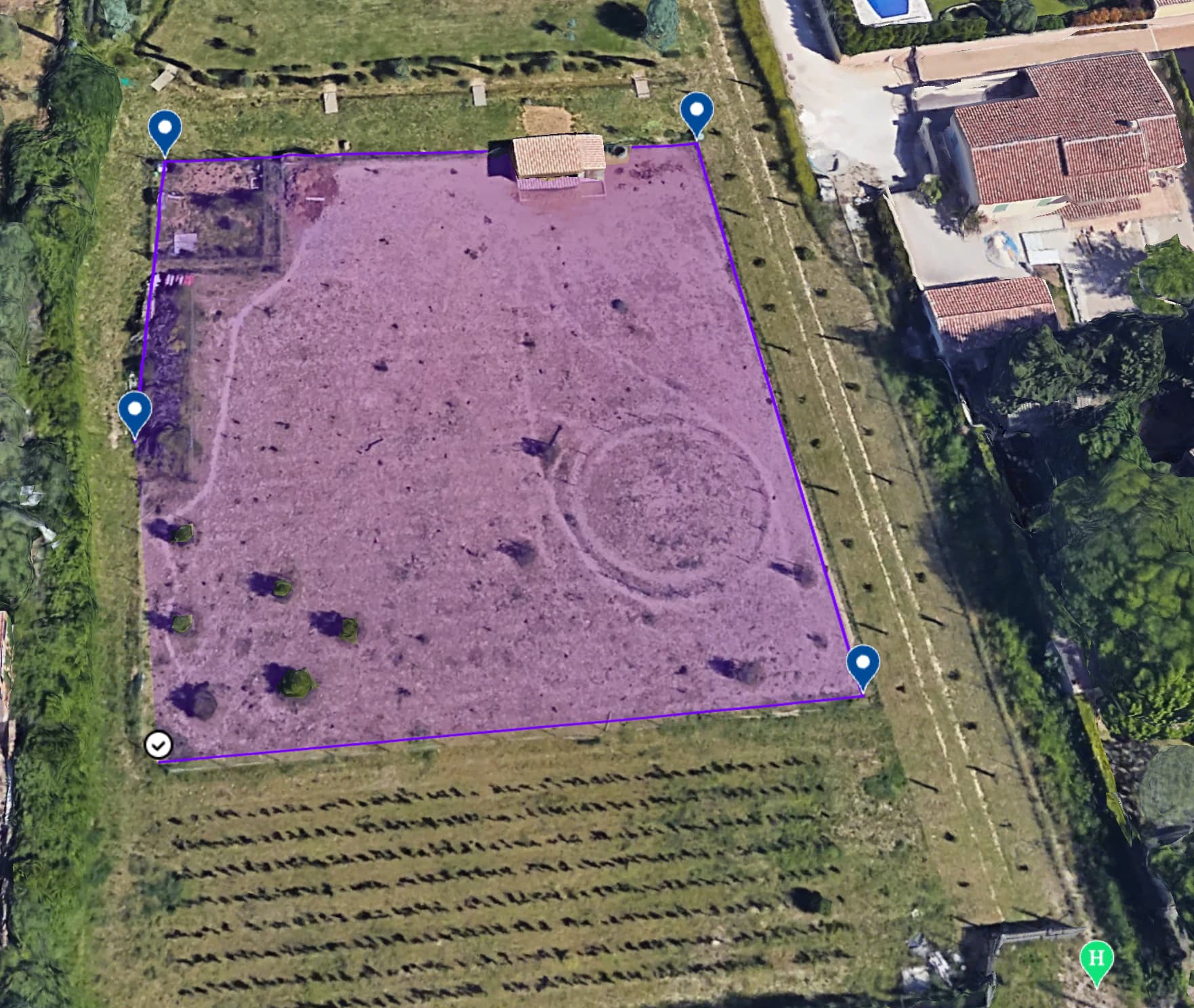
Mapping areas can also be drawn directly in the Google Earth 3D view
KML Import for Mapping and Boundary Planning
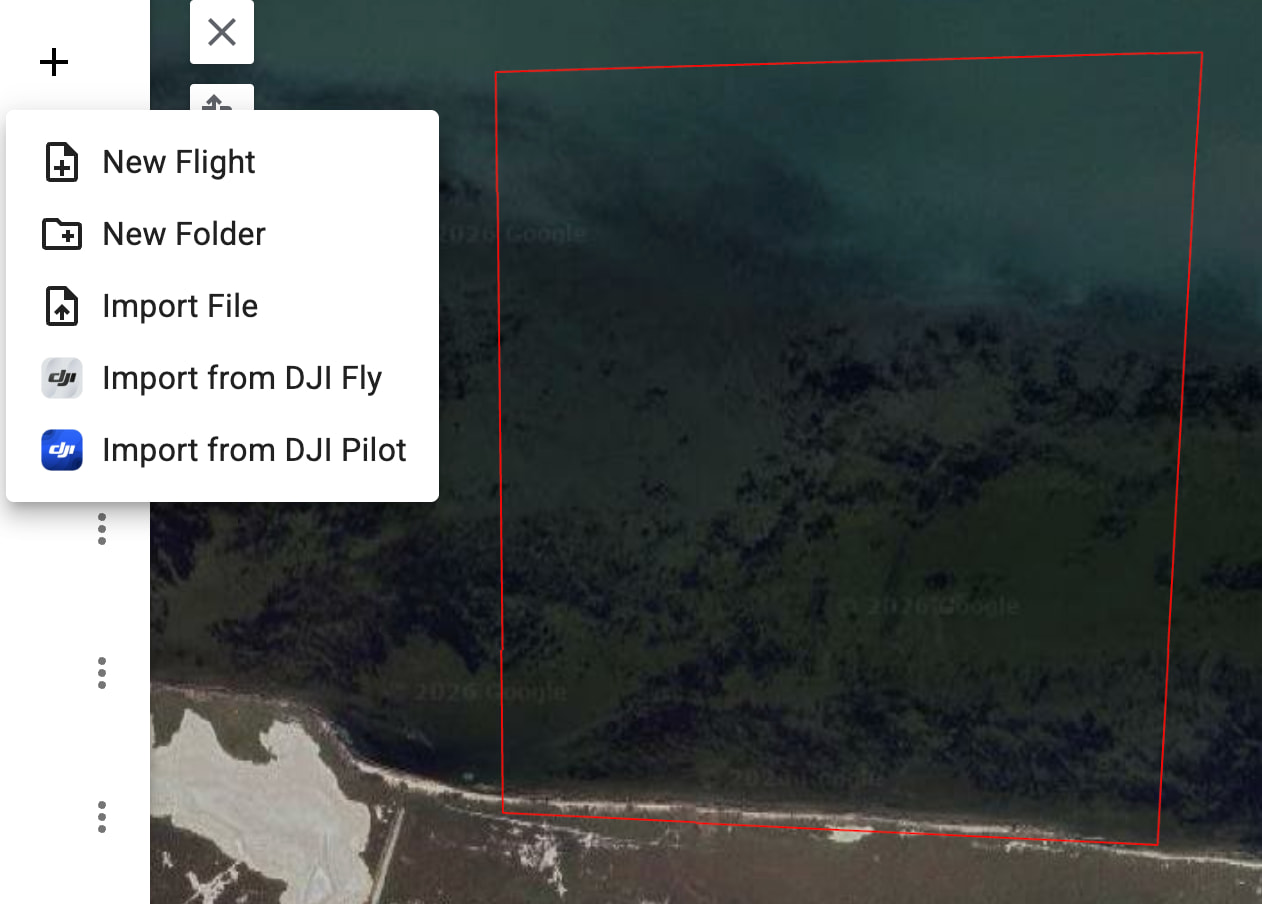
Litchi Hub allows you to import KML files to reuse previously defined flight areas, either to set safe boundaries or to generate mapping areas.
KML files can be imported in two different ways in the Litchi Hub:
- As Boundaries — visualize a perimeter or area directly on the map and use it as a safety reference when planning a flight (Import File)
- As a Mapping Polygon — import the KML shape directly into the Area Mapping advanced settings (Import Mapping Area) to automatically generate the mapping area
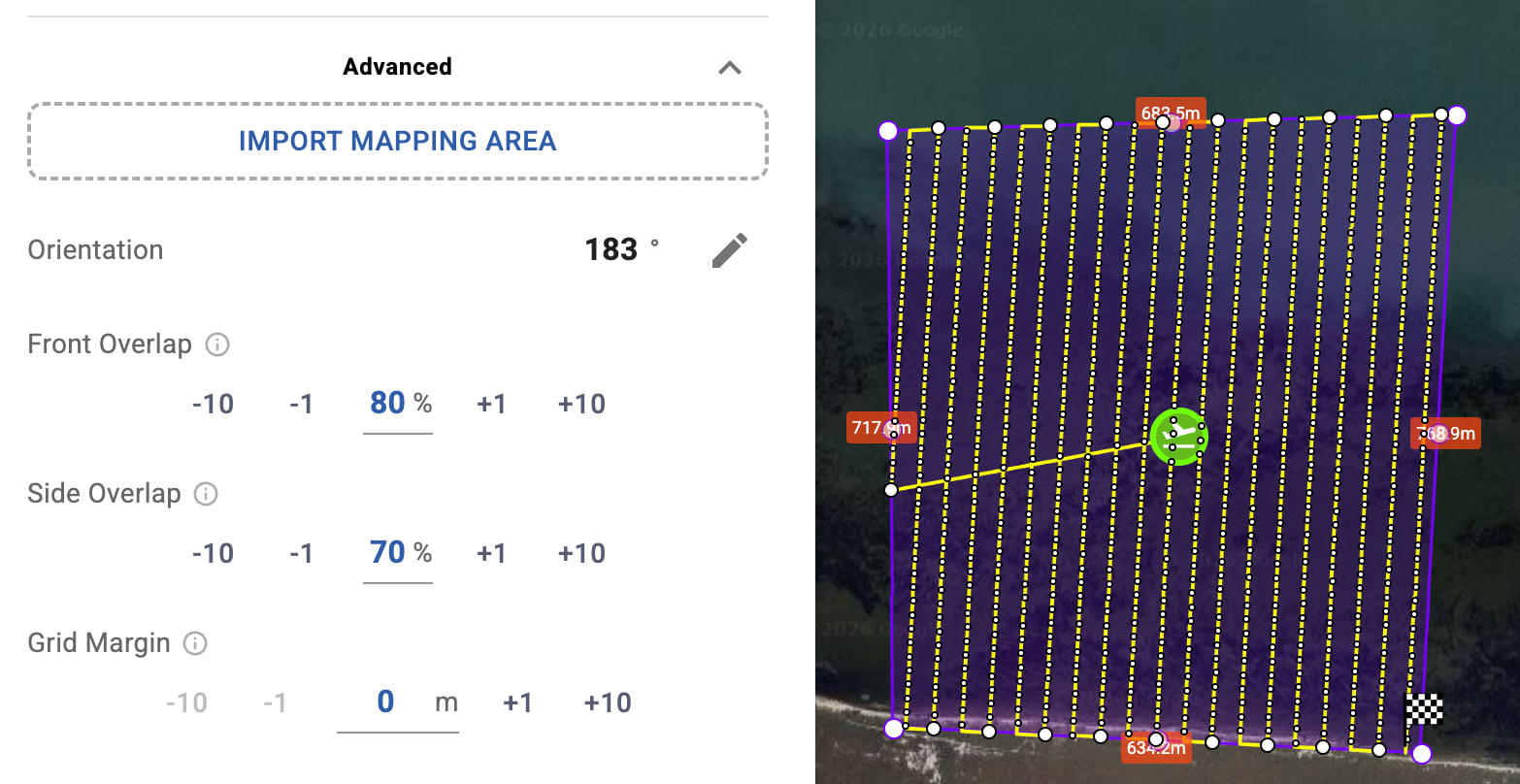
This feature allows geographic shapes or previously flown areas to be reused when planning mapping flights, making it easier to define accurate boundaries and mapping areas
Flight App Integration
When creating a flight, you can choose which application will be used to execute the flight.
The selected app determines the available flight settings, compatibility, export format, and flight behavior.
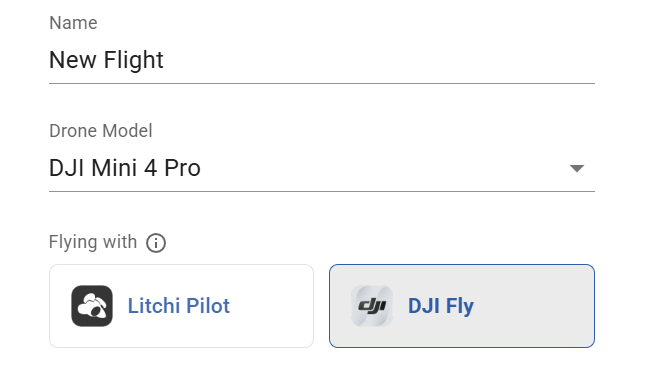
Supported flight apps include:
- Litchi Pilot
- Litchi For DJI Drones
- DJI Fly
- DJI Pilot
This allows you to execute the flight using your favorite flight app
Smart DJI Fly Export & Import
Litchi Hub Bridge seamlessly connects Litchi Hub with DJI flight applications such as DJI Fly and DJI Pilot.
Flights can be exported and imported directly using the companion application Litchi Hub Bridge.

The companion app is available for Mac and Windows.
Litchi Hub Bridge provides a simple way to export and import flights between Litchi Hub and DJI flight applications.
Export UI

Litchi Hub Bridge automatically transfers the KMZ flight file (DJI mission file) to the connected device.
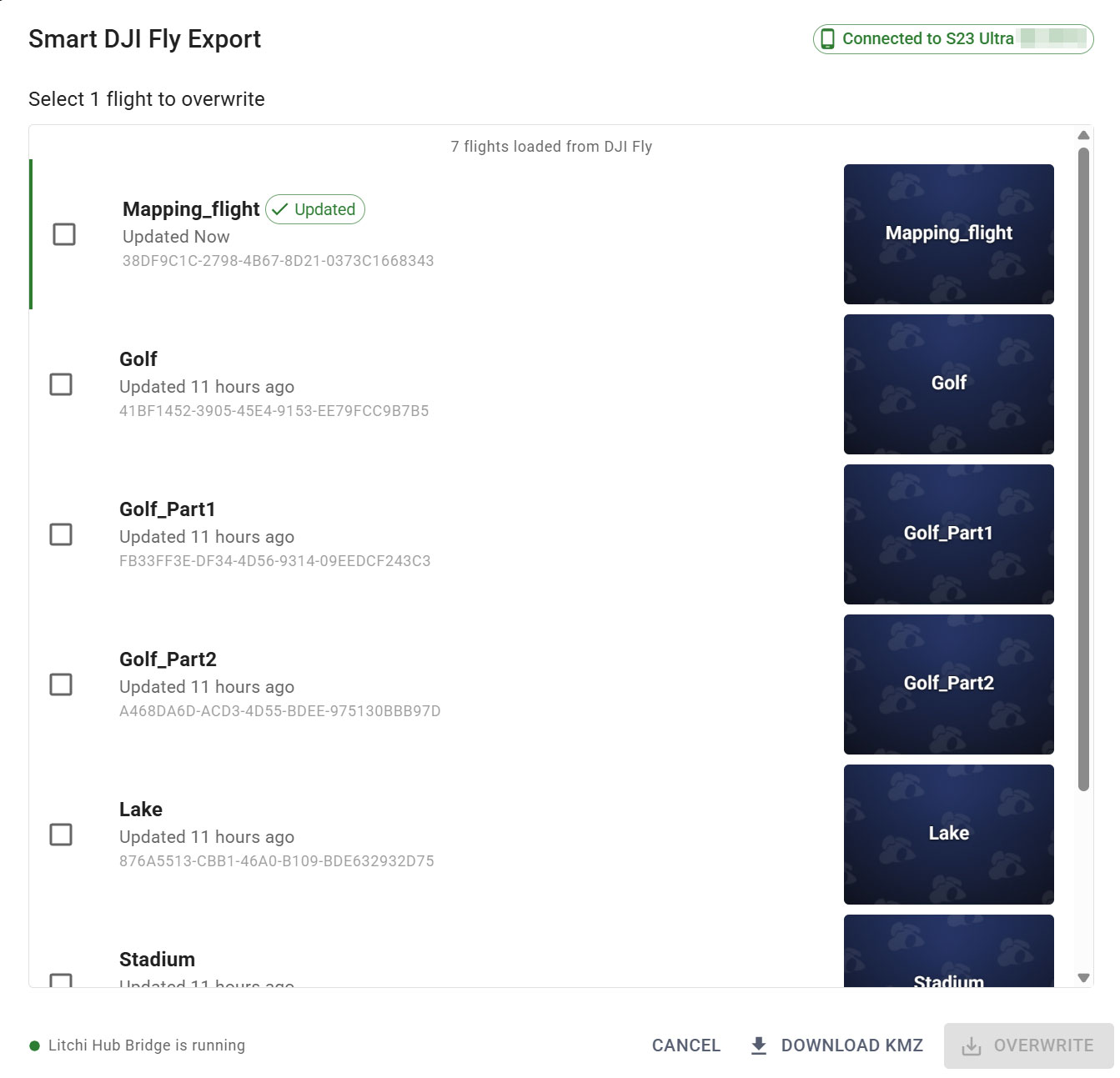
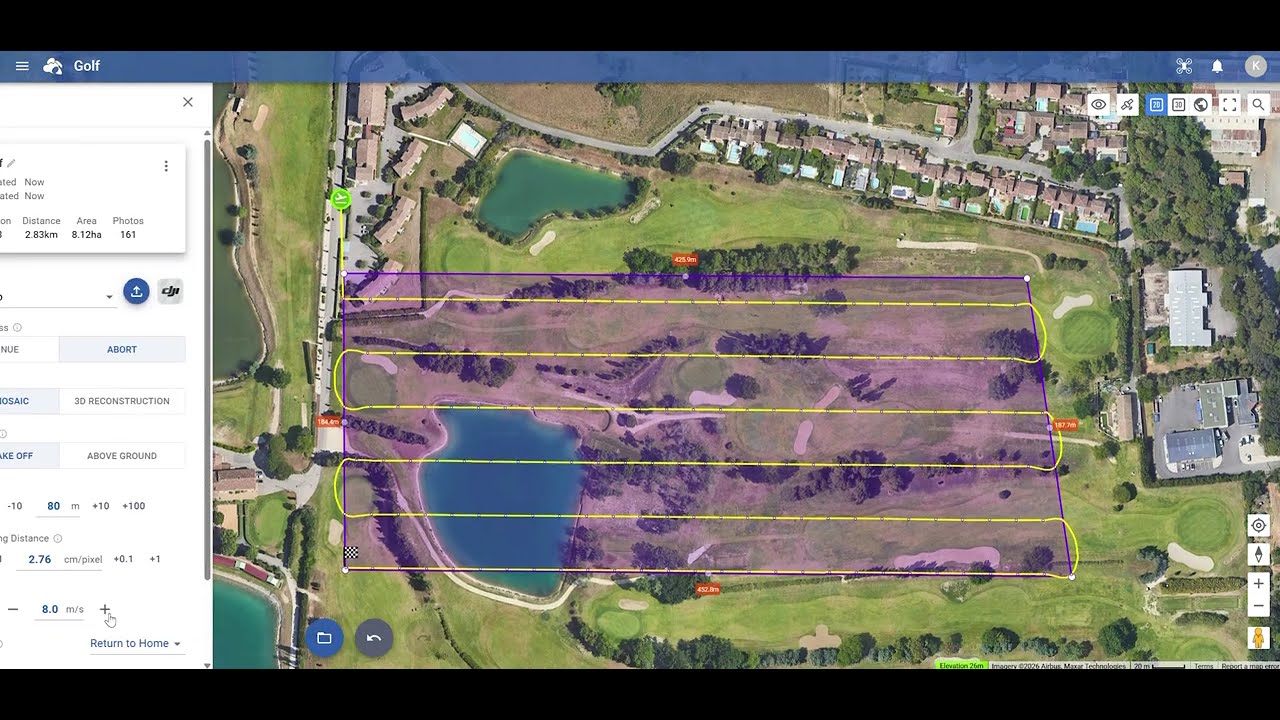
Additional export capabilities include:
- Automatic split into multiple flights when a flight contains a large number of waypoints
- Optimized interval photo capture planning
- Automatic interval suggestions based on flight parameters
Watch the tutorial:
Import UI
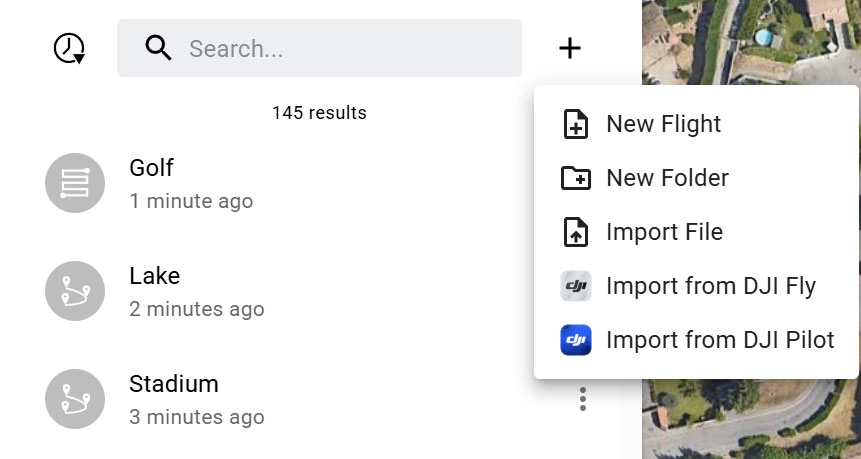
Flights created in DJI Fly or DJI Pilot can be imported directly into the Litchi Hub flight library.
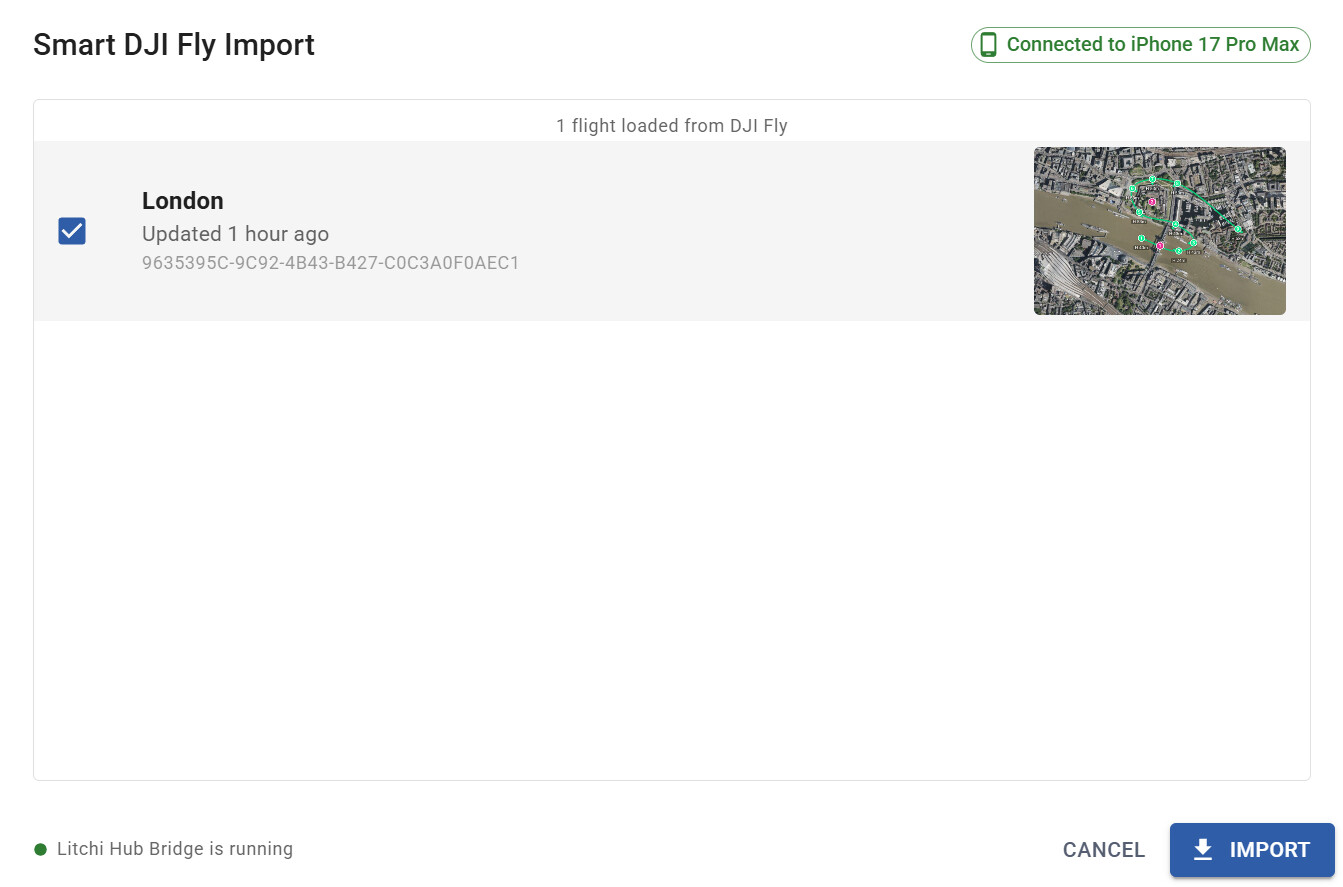
This tool enables seamless interaction between Litchi Hub and DJI flight applications
Additional Features
Litchi Hub also includes:
- Flight Engine Selection
- Enhanced KML exports including full Google Earth tours
- Multi-language support
- Ground elevation tooltips
- Automatic POI altitude calculation based on terrain and building height
- Straight-line waypoint support for DJI Fly
- GeoTIFF Overlay
Wide Compatibility — Litchi Hub supports most DJI drone models