Is there a way to remove the new addition to the map.
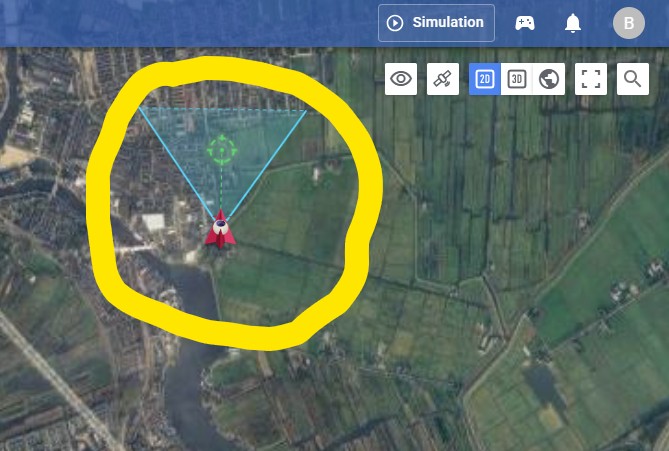
In one instance it was sitting on top (occluding) my last waypoint I wanted to move so I had to adjust the lat/long position of the waypoint far enough from whatever the thingy is to be able to use the cursor to move the waypoint.
I agree that it does sometimes get in the way. It doesn’t appear to add any benefit when using the traditional method to design a mission. Perhaps it should only be enabled when a remote controller is connected unless it serves some other purpose that I have not yet discovered.
1 Like
I don’t even know what it’s supposed to do other than get in the way.
The Litchi Drone can be used even without a controller connected.
If the drone is above a waypoint, you should be able to just drag the drone somewhere else. No need to move the waypoint.
Here is what you can do with the Litchi drone on a desktop device (same can be done on mobile devices via other means):
Drag the Litchi Drone wherever you want to add a waypoint, drag the Aim Point (green reticle) then either press Space or right click on the drone and select ‘Waypoint’ to add a waypoint at the drone’s location/heading/gimbal tilt etc.
You can also move the Litchi Drone using the keyboard, just like you can using a controller. Click on ‘Mouse & Keyboard’ to learn how to fly the virtual drone.
More features to come soon which will make it even more useful
I still don’t see any value using it, the only time I would use a controller is when I am actually flying my drone with the physical controller. A better solution would be to be able to in settings turn off seeing the phantom.
I’ve been experimenting with the keyboard shortcuts and the “Litchi Drone”. Two things:
“Shift + array keys” are supposed to pan the map. However, if a waypoint is already selected, in addition to panning the map, the waypoint is moved down/south no matter what arrow key is pressed. I think this is a bug.
“(Shift +) Pitch axis”: Where is the “pitch axis” control? Maybe I’m being dense but I don’t know where that control is or how to adjust it.
Pitch Axis refers to the Flight section keybind for ‘Pitch’. In RC mode 2, that’s the up/down keyboard arrows but it changes depending on the RC mode.
During the simulation, you can use Up/Down arrows to fast forward/rewind the simulation. Shift modifier is required when in google earth + Free camera mode because in that mode up/down arrow controls the camera pitch movement.
We’ll fix the bug you reported + improve the name for Pitch Axis.
Back at this again and the annoyances of the ( Litchi Drone ) icon. There is no value in displaying it if the user does not use it. In my example here..
- I start with a single waypoint without the left fly-out panel for the waypoint’s details.
- Now I want to click on the waypoint to bring up the details and set it’s POI but the ( Litchi Drone ) icon is occluding the waypoint I want to click on.
- Now I have to move the ( Litchi Icon ) out of the way so it no longer occludes the waypoint I want to access.
- Now I can click or move my waypoint as before the addition of this new ( Litchi Drone ) which I do not use.
- This ( Litchi Drone ) should have a toggle to hide it if the user does not wish to see or use it.
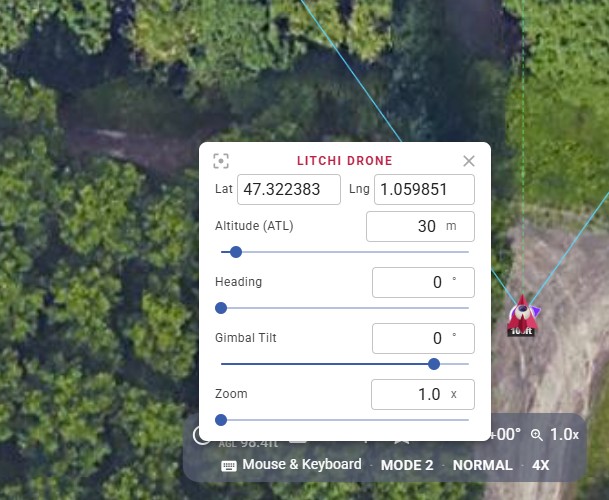
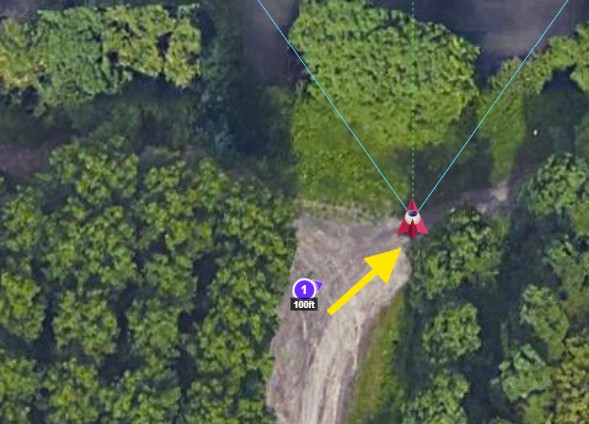
Now I move the ( Litchi Drone ) out of the way.
1 Like
Even if I drag the ( Litchi Drone ) far from my flight area to keep it from bothering me, after a simulation it’s back in my flight area.