I have been laboring for several nights trying to get the waypoint + POIs mission loaded on my RC Controller2 for Mavic 3 Pro. I don’ have any Android devices and the only iOS device is my iphone. Is this an impossible task? When I use Litchi Hub Bridge, I just get an error: no explanation. I need to use something like Litchi Hub to plan my waypoint mission as the RC controller screen is too small to make the necessary adjustments. Any advice short of “buy a pc” would be very very helpful
It is not clear what controller you have. There is no controller named “RC Controller2”. The Mavic is compatible with the RC-N1, RC, or the RC Pro. If you have one of the controllers with a screen, another iOS device is irrelevant. Let us know exactly what controller you have.
Very sorry about that! I have the RC controller. I loved using Litchi for creating my waypoint mission. It allowed me to make a track through streets in my neighborhood and direct the POIs to each neighbor’s house. I want to run this in the evening after the Christmas decorations are up and show it at our Christmas party. Without Litchi, I could not have done such a close and delicate job on a small controller screen. My trouble has been trying to get that kmz file off my computer and into the controller. I am hoping some of your experienced operators will know how.
The Litchi Hub Bridge will allow you to transfer your flights from Litchi’s Mission Hub to your DJI RC controller. The instructions are here:
Thank you. i have a Mavic 3 pro, which I believe its supported. I did already follow this guide using the Litchi Hub Bridge on my Mac but it would not connect into the internal files on the controller, showing an error instead. I have unlocked the usb for the controller and it is set on USB transfer. I have enclosed a screenshot of Litchi Hub Bridge. None of the alternatives suggested have worked either. Should I just give and and try to find someone to borrow their pc?
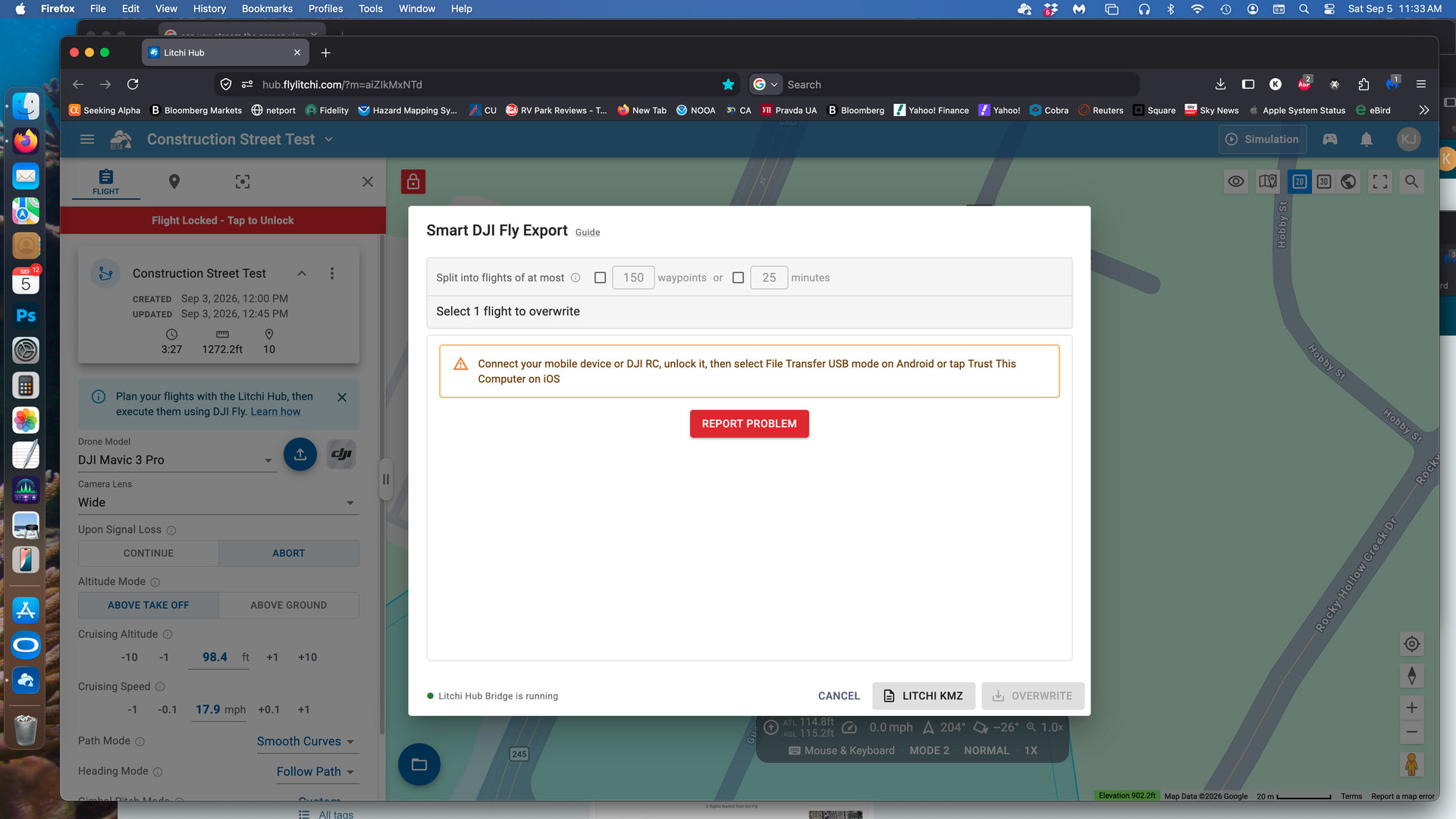
I don’t have a Mac so I may be of limited help. You didn’t explicitly say, so I have to ask: Is your DJI RC powered on and connected to your Mac with a USB-C data transfer cable?
Do you have the application" Android File Transfer"? If so, there is an alternate, manual method for transferring KMZ files. Look under the heading " Windows or Mac Method" here:
I have used this guide as well. Using the Android FIle transfer, I can see the internal flight records, but contrary to what it says, my Mac connected to the RC controller can not see past them. Even when I use the back door to bring up the waypoint files on the controller the AFT app cannot see them. I have tried several times with the manual waypoint copy into the dummy waypoint to sneak in it. Also tried using the micro sd trick to get it in, buit nothing has really worked. If I had a pc, would this work seamlessly to transfer the Litchi created kmz waypoint files to my RC controller to fly with?
It is not clear what this means. Does AFT allow you to navigate to the Waypoint folder here:
/Android/data/dji.go.v5/files/waypoint
I have the DJI RC2. The DJI RC is locked down a bit more than the the DJI RC2. The DJI RC does not allow its entire filesystem to be viewed under Windows. I have worked with people who own the DJI RC and a Mac. They have told me that my instructions have worked for them. So, I am not sure what else I can suggest.
I wish Litchi would make this more clear. Even in the screen capture of the error message, it says “Connect your mobile device or DJI RC”.
I knew one could not navigate the entire DJI RC filesystem from Windows but wasn’t sure whether or not Litchi found a way around that in the Hub Bridge.
I agree.
I was “fooled” myself, as you can see in the tread I linked.
The only way to use a Mavic 3-Litchi Hub workflow is by using a RC-N1 and smart device.
1 Like
So am I to conclude that since I have the RC Controller. And am using Litchi Hub to generate a waypoint mission, and assuming that I had access to any pc mac, tablet or phone, that it is impossible, or at least not known, to load that kmz file into that controller and fly it.
If that is the case, then has anyone had any kind of success using a RC controller to preplan a waypoint mission on a large monitor map and execute it?
There is a way. It would involve placing the KMZ file on a microSD card, plugging it into the DJI RC and then navigating the RC filesystem using Android. Look under the heading " Alternative Android Method Using MicroSD Card" in my “Import” documentation.
Thank you so much for trying everything you can think of. Unfortunately, I just got through trying your suggestion with the micro sd card. I can go through the steps correctly and it looks looks like it copied, but when I start up again and call up the controller waypoint mission, nothing has changed. I am going to have to think of another way around this roadblock. Again, Thanks All!!
I have changed the subject to better describe the controller being used. Hopefully this will improve the chances that someone with the same setup will respond.
Thank you for so much help here. I have had a breakthrough!! I have now been able to make a complicated waypoint mission on LitchiHub, save it and transfer into my RC controller. It flies and maneuvers just like the Litchi simulation showed. I am not sure how this method differs from the other published, but I know this works for me. I have a RC Controller, Mavic 3 Pro and Mac computer. I have made a (34steps) detailed step by step procedure that I can share if it seems to you to be appropriate.
Yes, I would like to see the steps that enabled you to transfer the KMZ file to the DJI RC.
I think these steps are correct to make LitchiHub missions flyable on Mavic 3 Pro drone using RC Controller. I have made three successful tests so far. I am publishing this guide as a text list.
How to plan in Litchi and execute in DJI Fly
0. I have a Mac mini (intel) communicating via USB-C to an RC controller and Mavic 3 Pro with latest firmware as of this date. The RC controller has a microSD card in it (important). My Mac browser is Firefox, and I am also using the OpenMTP app on the Mac to access the RC Controller which runs Android. These steps generally assume you know how to make a waypoint mission on LitchiHub and also that you know how to make and fly a simple waypoint mission on you RC controller and Drone.
1. Open LitchiHub and make a new waypoint mission including POI’s if wanted. This will be the mission that you want to fly on your drone using the RC controller.
2. After saving and naming, select flight library to see list of missions
3. The one you just got through doing should be at the top
4. Click the blue up arrow symbol to export, click Download KMZ
5. I am using a Mac (intel) and it downloads to my desktop
6. You should see a KMZ file with its name at your download site
7. The next steps involve getting the file into the RC controller.
8. Turn on Mavic 3 Pro and RC Controller and let them link (not flying)
9. On the Controller, tap on the waypoint planner icon (left side up and down line symbol)
10 Open the map and make a 2 or 3 point waypoint mission at a different location than the LIichi mission so you can tell when it is updated.
11. After saving and exiting, click again on the planner to open the history and you should see your latest mission at the top with the default name based on the date/time. This is your dummy placeholder file that will be overwritten with the saved Litchi file.
12. The next steps are precise so I can’t say this is the only way to do it, just that this way worked for me. Ok to turn off Mavic 3 pro now.
13. Turn on RC Controller, connect to computer via USB-c cable, swipe down from top twice to revel a black status page of wifi, bluetooth etc, and a gear icon for settings. Left status panel should show USB connected and file transfer enabled.
14. Tap gear icon to bring up folder list showing Network, Connected devices, storage, security compass, etc
15. Tap Storage to see internal storage and under it the micro SD card storage
16. Tap internal to bring up folders Photos, & video, Music and audio, system etc., tap Music
17. This trick is to bypass the system blockout and see your files.
18. You should see Audio Files, tap Audio
19. In Audio folder tap Hamburger menu next to Audio to show side panel with Recent, Images, Video Audio and Downloads. Slide left side up a little to see the two storage locations: DJI RC and SD card
20. Tap on DJI RC To see a long list of folders: Tap Android, then tap data, then tap dii go v5, then tap files to reveal a long list of folders. Scroll down to find one labeled waypoint.20. Tap on DJI RC To see a long list of folders: Tap Android, then tap data, then tap dii go v5, then tap files to reveal a long list of folders. Scroll down to find one labeled waypoint.
21. You have to be careful of your touch screen swipes as it is easy to find yourself back at the start homepage and have to do it all over again.
22. Tap waypoint, to bring up all saved waypoints, each with unique Hexadecimal strings. Tap the three dots on the upper right to see drop down menu and select sort by newest first.
23. The new sort should have a folder or two in front named capability and map_preview, but the next one is the one you just made as your dummy placeholder. Take a picture of it with your phone so you can later name a file with its exact string. If you tap on the folder itself, it brings up the contents of an image folder and the actual waypoint KMZ file which has the same name as its folder. If you took a picture to record the name or wrote it down, tap on the KMZ file to make a check mark and hit the delete icon to delete it. We will paste the Litchi file back in its place directly. I suggest to not turn off the controller until this process is finished.
24. Take a breather, open a beer and rest your brain for 10 minutes as you review the next plan parts
25. In General, you will delete this aforementioned KMZ file (but not its folder), then rename the save Litchi
KMZ file with the HEX name you photographed (exactly). Then transfer the renamed KMZ file from Litchi To an intermediate location in your RC controller that you have access to with OpentMTP. After that transfer, you will copy the transferred file into the folder whose original you have already deleted and you are done.
26. Before starting OpenMTP, close down all the files you have open including dropbox and any other file transfer app running in the background or started on start-up. They will interfere with OpenMTP getting into the hidden files of the controller. Open the desktop folder where the Litchi KMZ file was downloaded to and rename it the exact name shown as the top file in your photograph of the dummy placeholder file on the controller. Now start Open MTP
27. On the controller, repeat steps 13 - 20 to open up the device for OpenMTP. Now re-plug in the controller to your computer with USB-C from computer to open port at the bottom of controller.
28. After some chimes ring, click refresh on the OpenMTP right page to see folders, Spotlight, Alarms, Android, DCIM, Download, goshare, Movies, Music, Notifications, Pictures, Podcasts and Ringtones. Notice No waypoint folder is visible. Open MTP is seeing the MicroSD storage on the right pane. the left pane you should see the folders of your computer including the desktop folder where the recently renamed Litchi KMZ file is located. Doubleclick on desktop folder to see your downloaded file.
29. On the right pane, doubleclick on the Download folder to open it, now drag the Litchi KMZ file over to the downloads folder. You are now done with Open MTP.
30. Go back to the controller and click the Hamburger menu to return to side panel with storage types on lower left. Click on MicroSD storage and see folders like Alarm and Android. See also folder called Download, tap it to see your renamed Litchi file. (It will be labeled the Hex string you photographed). Click three dots and sort based on newest first. Click on the file to make a check mark and use 3 dots drop-down menu to Move To…. After tapping move to, go back up with Hamburger menu and select DJI RC and drill down as before all the way to the waypoint folder. Opening the folder named in the photograph should show no KMZ file as it was deleted before, However, hit the Move to button in lower right and it should transfer that KMZ file into this folder. I have had mixed success with copy command so I am using move.
31. Sometimes , I get a red banner on OpenMtp when trying to open a folder saying: ( an error occurred…). When you see that unplug the cable from the controller and replug Back in, wait for chime and hit refresh on Open MTP. It apparently runs into communication problems when switching folder, so you may need to repeat the replug/refresh action to keep going.32. Hopefully, if you have made no errors, the file transfer is done. One more step remains.
33. Unplug controller, connect to enabled Mavic 3 pro (on the ground). Open up flight view and tap on map, then tap on waypoint icon to open waypoint mission history. There you will find, still at the top, hopefully, your new Litchi file. Its icon will still look like the old one, but you need to open it and look at it on the screen map. It should show your new path from the Litchi planner. Just now save and exit and it will make a new icon with your new path.
34. Obviously this is a lot of work for a trivial mission, but the one I was trying to load had about 70 waypoints and several POIs in a two city block area, so the little screen on the controller could not have worked like the Litchi planner did. Thanks to all who contributed ideas for this, I stand on their shoulders.